Launch and results
Starting a mailing
Open the mailing and click "Start". The button is on the mailing's page and at the "Sending" step in its settings.
Starting requires a Pro subscription. Without it, the subscription checkout window opens instead.
After the start, the mailing goes through the states in order:
| State | What happens |
|---|---|
| Created | A draft. The mailing is not started and sends nothing |
| Waiting to collect audience | The mailing is started and waits for the time to collect the recipients |
| Collecting audience | The platform is collecting the list of recipients |
| Waiting to be sent | The recipients are collected, the mailing waits for the set time |
| Sending | Messages are going out to the recipients |
| Sent | The sending is finished |
| Stopped | The mailing was stopped by you or by the platform |
The mailing's page


A mailing has two tabs — "Status" and "Subscribers". The "Status" tab shows the name, state, sending time and a link to the scenario at the top, and the sending progress and counters below:
- "Subscribers" — how many contacts are in the list of recipients. The "In queue" line shows how many have not been sent the mailing yet.
- "Delivered" — the messenger accepted the message.
- "Unsubscribed" — contacts who had unsubscribed from mailings or blocked the bot by the time of sending. The mailing was not sent to them.
- "Errors" — sending failed: the messenger rejected the message or a scenario block has an error.
- "Conversion" — the share of delivered among those who already have a result.
A click on a counter opens the list of recipients with that result.
The "Details" block shows the channels, the audience, the time the recipients are collected, the start and end of sending and its duration.
The list of recipients
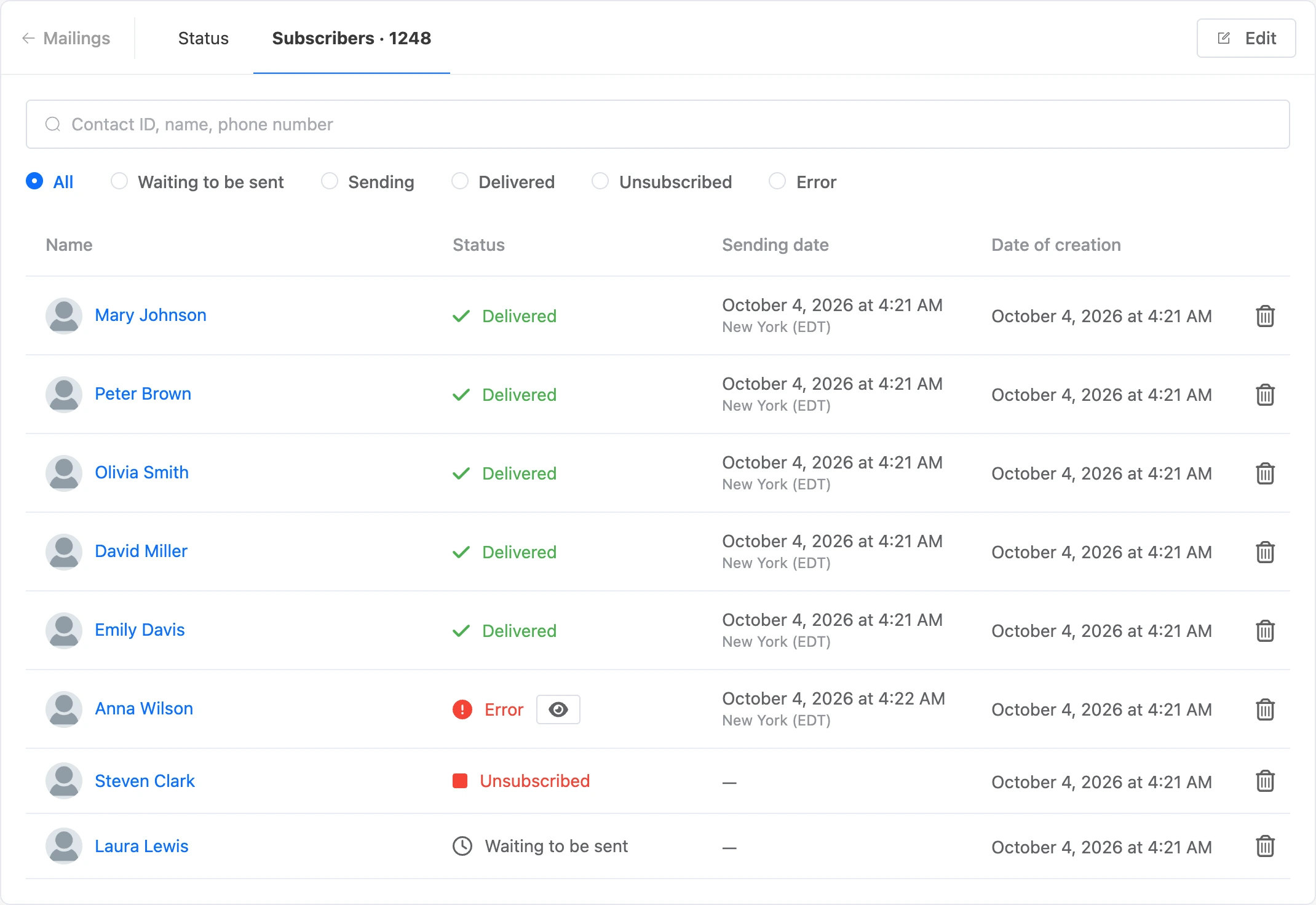
The "Subscribers" tab lists all recipients of the mailing: the contact's name, the state and the sending time.
- The search finds a recipient by contact ID, name or phone number.
- The switch above the table leaves recipients with one state: "Waiting to be sent", "Sending", "Delivered", "Unsubscribed", "Error".
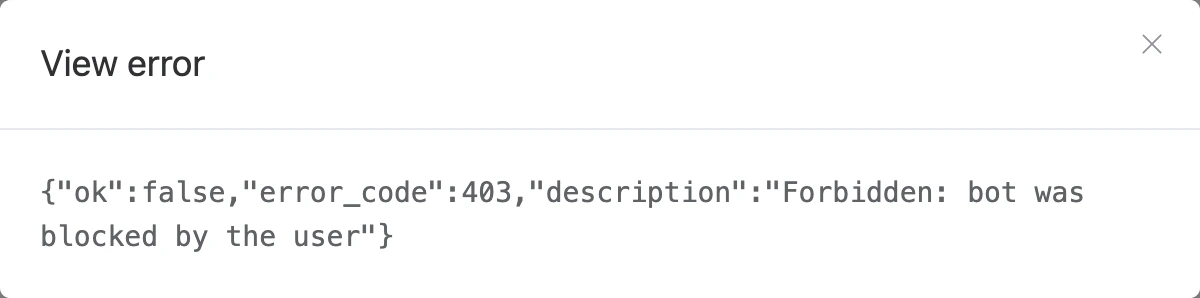
- A recipient with an error has a button with an eye — it shows the messenger's response.
- The bin icon removes the contact from the recipients. You can remove only someone who has not been sent the mailing yet.
Stopping and resuming
The "Stop" button on the mailing's page ends the sending. Stopping takes a few seconds: messages that have already gone to the messenger cannot be recalled.
A stopped mailing can be started again — with the "Start" button:
- those who have already got the mailing will not get it a second time;
- the list of recipients is collected anew: contacts that have come to match the filters in the meantime are added to it;
- a one-time mailing whose time has already passed resumes sending right away;
- a mailing by days of the week stopped in the middle of sending resumes right away if no more than 12 hours have passed since the set time. Otherwise it waits for the next ticked day.


The platform stops a mailing itself if:
- the Pro subscription has ended;
- the mailing's scenario or the bot itself has been deleted;
- the mailing has no available channel left.
If a mailing does not arrive
- Few recipients. Check the channels and filters at the "Subscribers" step: a contact must match all the conditions. Those who have unsubscribed or blocked the bot are not included in the list.
- Many errors. Open the recipients with the "Error" state and look at the messenger's response. Common causes: a scenario block is set up incorrectly or the messenger does not accept a message of this kind.
- VK rejects messages. Check the mailing's message type: every type has its own rules — for example, a "Default" message reaches only those who have written to the community within the last 24 hours.
- The mailing is in the "Created" state. It is saved but not started — click "Start".
- You cannot create or start a mailing. The limit on the number of mailings may have been reached.