

Sign-up and sign-in
Sign-up
- On the sign-in page, click "Register".
- Fill in the "Email", "Name" and "Password" fields. The password must be at least 8 characters long. When you start typing the password, the "Confirm password" field appears.
- Click "Register".
- The "Check your inbox" message opens. Follow the link from the email — it confirms the address and takes you back to the sign-in page with the note "Your e-mail has been successfully confirmed.".


By clicking "Register", you accept the terms of service, the privacy policy and the cookie policy — links to them are above the button.
Phone verification
In some countries sign-up has two steps, and the first one is "Verify your phone number":
- Enter the number and click "Send code".
- The code comes by text message or by a call. If you got a call, enter the last 4 digits of the number that called you.
- Click "Next" and fill in your email, name and password.
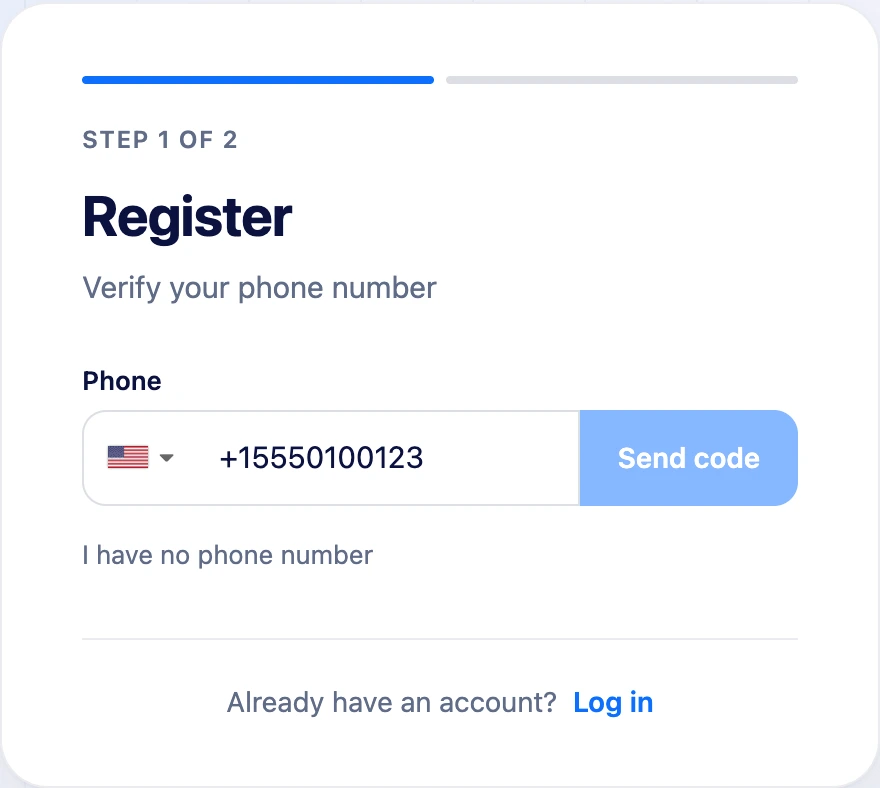
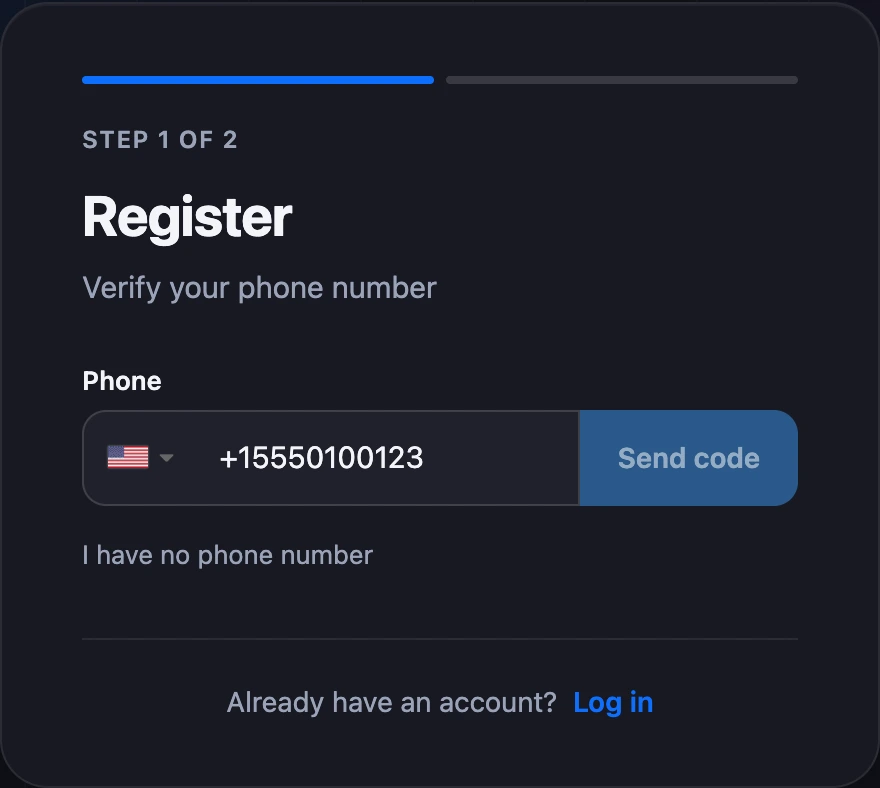
You can request the code again after the time shown on the screen. If you have no phone, click "I have no phone number" — the step will be skipped.
What is created at sign-up
- The first project called "My project". You can rename it — see Projects.
- A trial Pro subscription. How long it lasts and what it gives is on the What is available without Pro page.
- The account balance — in the currency determined by your country.
The first time you open a project, the platform asks "What are you planning to do?" and offers to keep only the sections you need in the menu. More on the Projects page.
Signing in with a password
- In the "Phone or email" field, enter the email or the phone number linked to the account.
- Enter the password and click "Log in".


You cannot sign in until your email is confirmed: you will see the message "First confirm your E-Mail." with a "Resend confirmation" link.
If two-factor authentication is on in the account, the "Confirm sign-in" screen opens after the password — see Two-factor authentication and sessions.
Signing in with Google and Yandex
If social sign-in is enabled on the platform, there is an "or continue with" block with Google and Yandex buttons under the sign-in form.
- You have no account yet. It is created on your first sign-in, and you don't need to confirm your email by letter.
- An account with this email already exists. You sign in to it, and the social network is linked to the account.
You can also link or unlink a social network in the account settings — see Profile.
Note
If the account was created through a social network, you don't know its password. You will need it to change your email, turn on two-factor authentication or delete the account. Set it with "Forgot your password?" on the sign-in page.
Several accounts
The browser remembers the accounts you have signed in to. If there are several, the sign-in page opens with the "Choose an account" list:
- clicking an account opens it without a password;
- "Add account" opens the sign-in form for one more account;
- the cross on the right removes the account from the list.
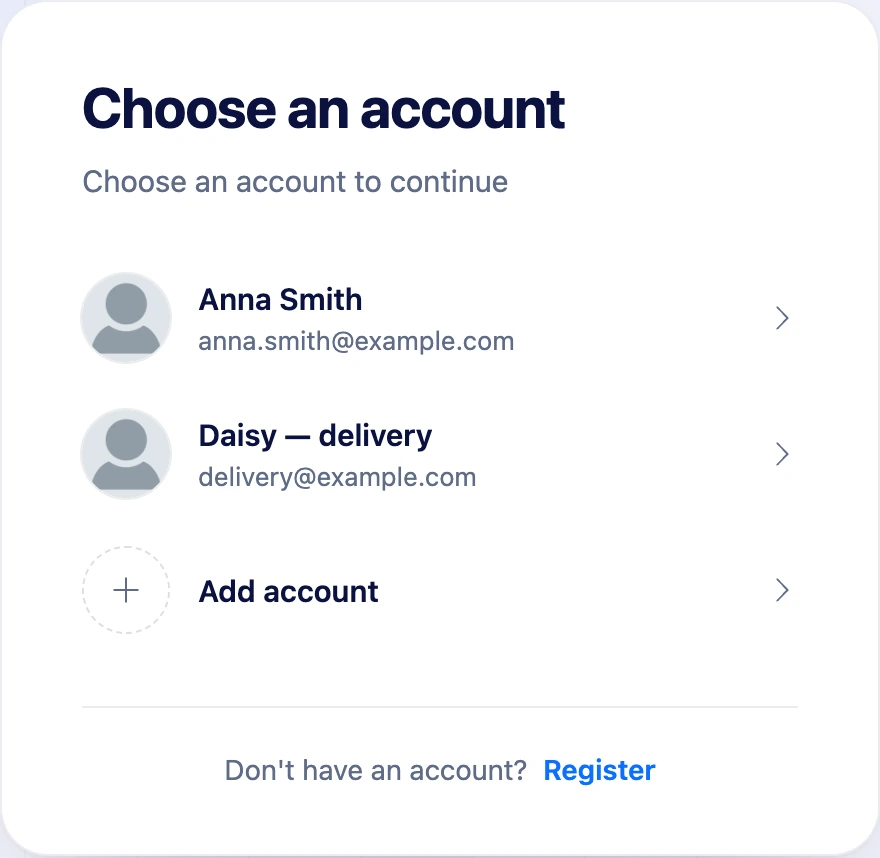
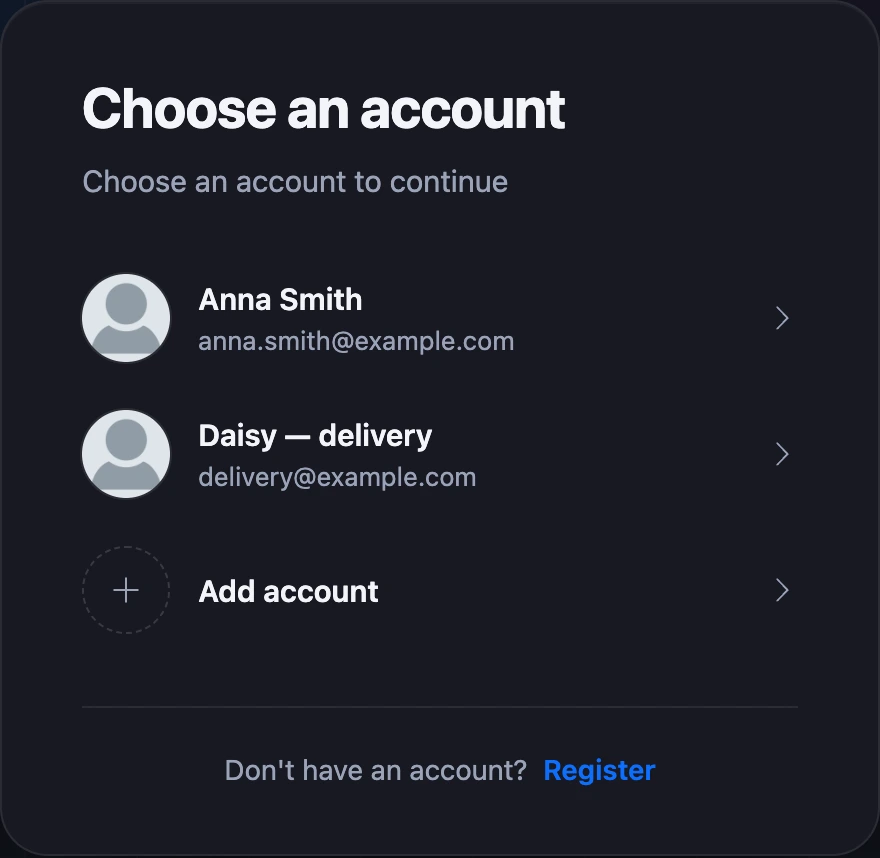
Inside your account, the account menu has the same: "Change account" if you have several accounts, or "Add account" if you have one.
Recovering your password
On the sign-in page, click "Forgot your password?". The "Password recovery" form opens with the "Phone or email" field.


By email:
- Enter your email and click "Reset password".
- Follow the link from the email. The link is valid for 3 hours.
- On the "Password reset" page, enter your email, the new password twice and click "Reset password".
By phone:
- Enter the number linked to the account and click "Next".
- Enter the code from the text message or the call.
- Enter the account's email, the new password twice and click "Reset password".
After a password reset, all sessions of the account end — you need to sign in again on every device.
Signing out
In the account menu, click "Log out". To sign out on other devices, open "Settings" → "Security" — see Two-factor authentication and sessions.
If something does not work
- "Invalid login or password". Check the keyboard layout and the email. If you can't remember the password, recover it.
- "First confirm your E-Mail." Click "Resend confirmation" and check your spam folder.
- "This email is already registered." An account with this email already exists — sign in or recover the password.
- "Too many requests. Try repeating this action later." The limit on the frequency of attempts has kicked in. Wait and try again.
- "Registration of new users is temporarily disabled…" Sign-up on the platform is temporarily closed. Try again in a few hours.
- The code does not come to the phone. You can request it again only after a pause — the remaining time is shown on the screen.