

Versions and publishing
Versions
The app's scheme is stored in versions. You edit one version, while people with the link see another — the published one. This way you can rework the app without breaking what already works.
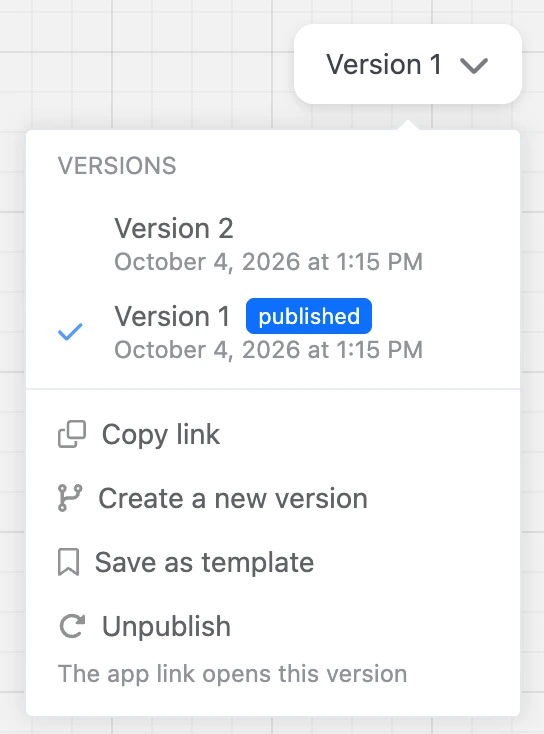
The version menu is on the right of the toolbar above the map. While there is only one version and it is not yet published, there is a green "Publish" button, and the other items are under the arrow next to it. Later, the "Version N" button takes its place.
In the "Versions" menu:
- the list of versions with the date of the last edit; the published one is marked "published". A click on a version opens it in the builder;
- the bin icon in a row — "Delete the version". You cannot delete the only version or the published one;
- "Copy link" — the app link;
- "Create a new version" — a copy of the open version with all its screens, colours and app code. The new version opens right away;
- "Save as template" — see Creating an app;
- "Publish" or "Unpublish" — for the open version.
An app can have up to 50 versions.
Tip
Make big changes in a new version: the published one keeps working while you build the next one and check it in the preview.
Publish
The app link opens only the published version. While no version is published, the person sees "The app has not been published yet." instead of the app.
- Open the version you need in the builder.
- Click "Publish" — the button on the toolbar or the item in the version menu.
- If there is already a published version, confirm the replacement. Only one version can be published: the previous one stops opening, and the new one takes its place.
"Unpublish" — the version stops opening via the link, and the app again replies "The app has not been published yet."
Versions can be published by someone with the "Building a mini app" permission, and by the owner — with a Pro subscription.
Connect a bot
For the app to open in Telegram, MAX and a website chat, you need to connect a bot to it. The platform uses the bot's token to check that the app was opened from the messenger and to identify the person.
If no bot is connected to the app after publishing, the "The app is published" window opens:
- In the "Bots the app is opened from" field, choose bots of the project. If the project has one bot, it is already selected.
- Click "Connect".


You can close the window with the "Later" button and connect bots at any time in the app's "Settings" section — in the same field.
- Only bots of the same project can be connected, no more than 20.
- The "Bot scenario" blocks and the contact tag hints work with the connected bots.
App settings
The "Settings" section in the app's menu is the "App settings" window:
| Field | What it sets |
|---|---|
| "Name" | The app's name in your account, in the page title and under the icon on the phone screen |
| "Bots the app is opened from" | The connected bots — see above |
| "App icon" | A square image, at least 512×512: JPEG, PNG, GIF, WebP or AVIF, up to 5 MB. Without it, the app cannot be added to the home screen. Buttons — "Upload an icon", "Replace the icon", "Delete" |
| "New guests per hour from one address" | The guest limit — see Users |
| "App link" | The app's address and a copy button |


Changes are applied with the "Save" button. You can also change the icon from the app switcher at the top of the side menu — the "Change icon" item.
The app link
The link looks like this: https://app-code.domain/secret. Each app has its own address — you do not need to compose it by hand, copy the ready one:
- in the app's "Settings" — the "App link" field;
- in the builder — the version menu → "Copy link";
- in the "The app is published" window.
The link does not change from version to version: after publishing a new version, you do not need to update it in the bot's buttons.
Link parameter
You can add a parameter to the link: …/secret?startapp=promo. The value gets into the startParam variable, and the "Link parameter" condition helps open different screens for different people — for example, to tell a visit from an ad from a visit from a mailing. The parameter is up to 512 characters.
How to open the app from a bot
Telegram
Add a button of the "Web App" type to a bot message:
- In the bot's scheme, open the block with the message and add a button.
- In the "Menu item settings" window, choose the "Command type" — "Web App".
- Paste the app link into the "URL" field.
- Save the button.
A tap opens the app inside Telegram, and the platform identifies the person. More about buttons is on the Messages and buttons page.
MAX
In MAX, a button opens only the address specified in the "MAX for Business" account, in the bot's mini app settings. So:
- Copy the app link and specify it in the "MAX for Business" account — in the bot's mini app settings.
- Connect this bot to the app in "Settings".
- Add a "Web App" button with the same link to a bot message.
The "Web App" button in MAX opens the app only if the link leads to a platform app connected to this bot. Otherwise the button is sent as a regular link and opens in the browser. MAX passes the startapp parameter from the link to the app.
Website chat
A "Web App" button with a link to a platform app opens it over the chat without taking the visitor away from the website. The app recognizes the visitor as a chat contact. The bot must be connected to the app. More about the chat is on the Web chat page.
Browser and phone screen
You can place the link anywhere: on a website, in social networks, in a mailing, in a QR code. In a browser, a person opens the app as a guest.
If the app has an icon, the phone's browser offers to add it to the home screen. This way the app opens without the address bar, like a regular one. Installation works only over a secure https:// address.
In VK and Viber, the "Web App" button works as a regular one: you can send the person a link — the app opens in the browser.
If the app does not open
- "The app has not been published yet." Publish a version.
- "Could not verify who opened the app. Check that a bot is linked in the app settings." The app was opened from a bot that is not connected to it. Connect the bot in "Settings".
- In MAX, the button opens the browser or another app. Check the address in the "MAX for Business" account and that the bot is connected to the app.
- "The session has expired, please open the app again." The person has not been in for a long time — let them open the app again.
- "Too many new visitors from your address, please try again later." The guest limit was triggered — see Users.
- "Too many actions in a row, please wait a minute." More than 240 taps per minute from one person.
- The app does not offer installation on the phone screen. Upload an icon in "Settings".