

Contact card
The card brings together everything the bot knows about a person. To open it, click the contact's name in the list of contacts.
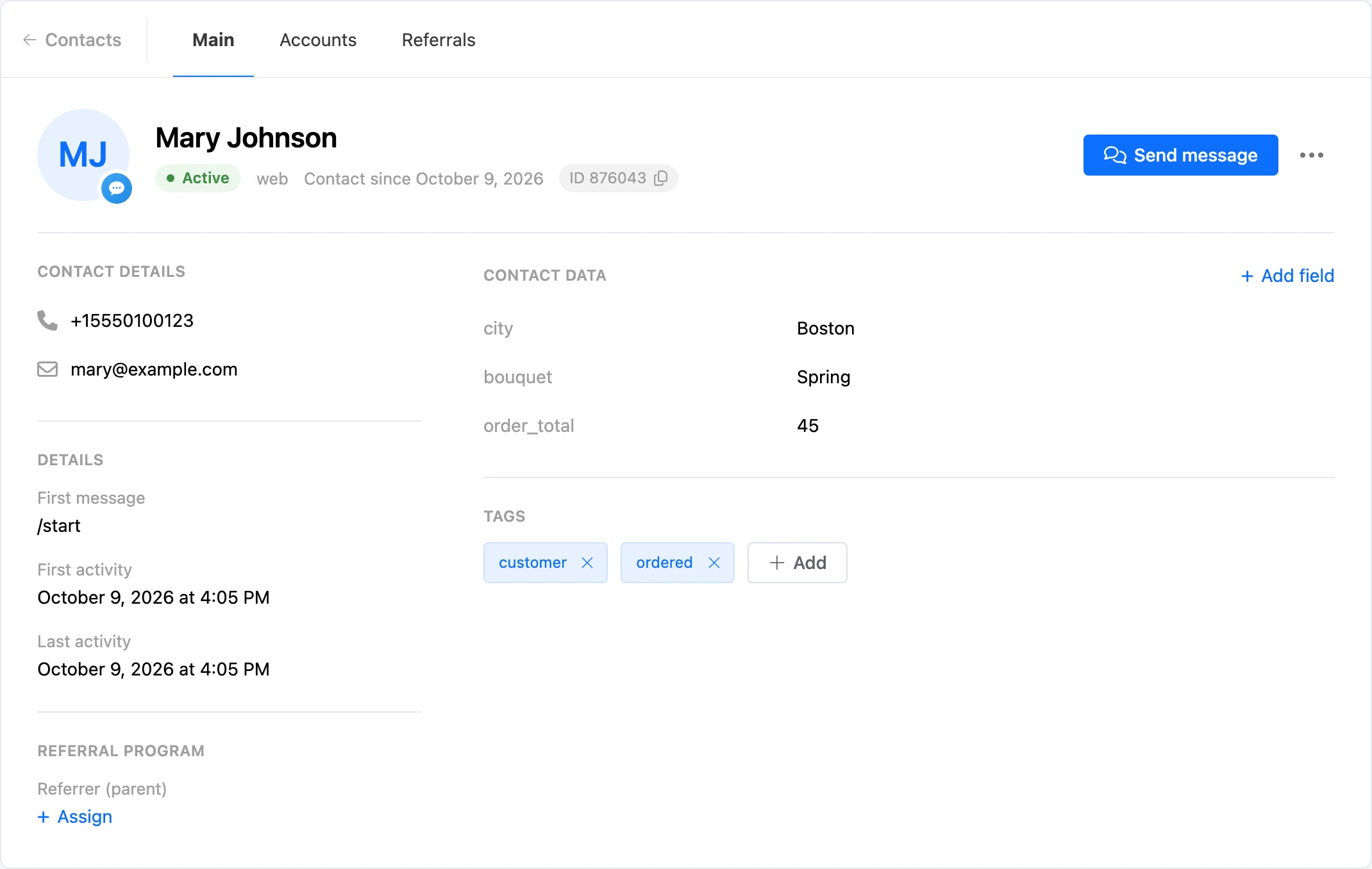

At the top of the page are the tabs: "Main" (the card itself), "Accounts" and "Referrals". The last two are covered on the Accounts and referrals page. The "Contacts" link on the left returns to the list.
The card's header
The header holds the avatar with the messenger's icon, the name and a line with the key details:
- the contact's status;
- the channel in which the person talks to the bot;
- "Contact since …" — the date the contact appeared in the bot;
- the ID — the contact's number on the platform. A click copies it. The ID is handy for finding the contact in the search or assigning it as a referrer.
Statuses
| Status | What it means |
|---|---|
| "Active" | The bot can write to the contact, mailings reach them |
| "Unsubscribed" | The person has unsubscribed from mailings. The bot replies to them according to the scenario, but mailings do not arrive |
| "Blocked the bot" | The messenger reported that the person has stopped or blocked the bot. Messages do not reach them |
For the "Unsubscribed" and "Blocked the bot" statuses, the "Details" section shows the date when it happened. If a person who has blocked the bot writes to it again, the status goes back to "Active". How people unsubscribe and subscribe back is on the Recipients and filters page.
Buttons
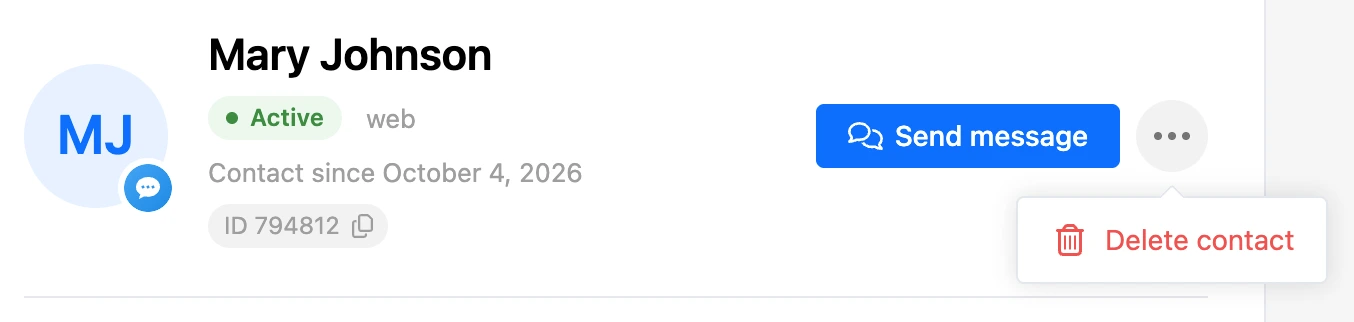
- "Send message" opens the conversation with the contact in the "Messages" section. There an operator can also turn the bot off for this contact.
- "⋯" → "Delete contact" deletes the contact from the bot.

Contact info
The "Contact details" section holds the ways to reach the person:
- links to their profile in the messenger: the username in Telegram or MAX, the VK page. They appear if the messenger has passed this data;
- phone. If there is no number, click "Add phone number", enter it and click "Save". You do not have to remove spaces, brackets and hyphens;
- email. If there is no address, click "Add email";
- the address, if the bot has saved it.
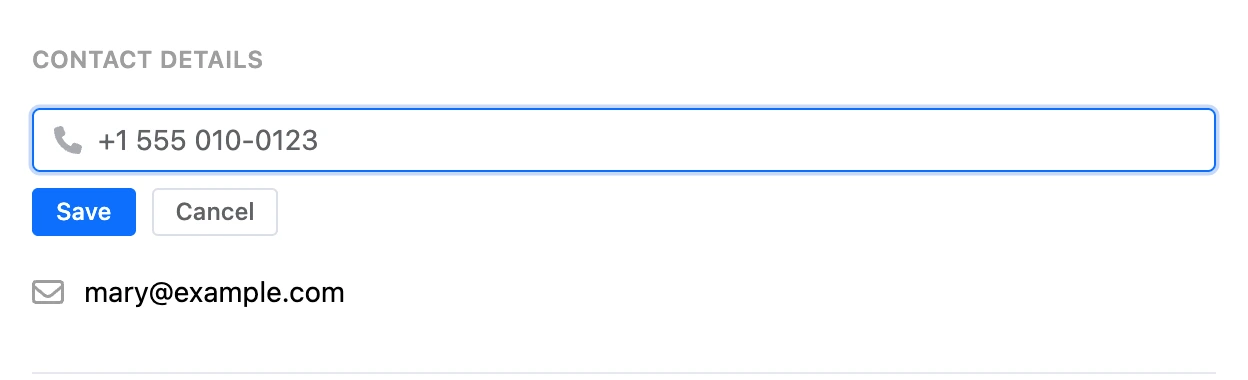
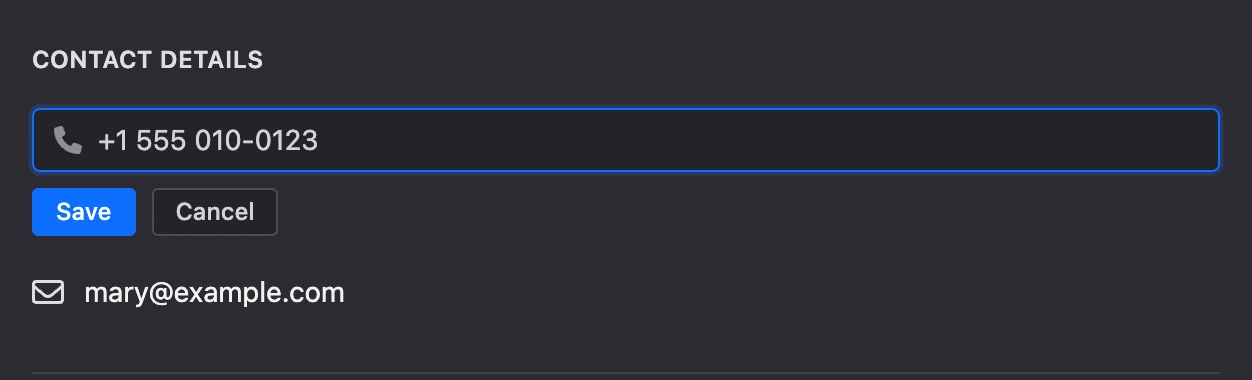
Next to the links, phone and email is a copy icon, and the phone and email also have a pencil for editing. To erase the phone or email, open the edit, clear the field and save.
The scenario writes the phone and email too — with the "Phone number request" and "Email request" blocks. If amoCRM or Bitrix24 is connected to the bot, the phone and email entered in the card are sent there the same way as after these blocks.
Details
- "Status" — the date since which the contact has been unsubscribed or has blocked the bot. An active contact does not have this line.
- "First message" — the text the person started the conversation with.
- "First activity" — when the contact appeared in the bot.
- "Last activity" — when something last happened in the conversation with the contact.
Scheduled
The "Waits" section appears if the scenario has planned a delayed sending for the contact — with a "Delay" or "Timer" block.
Every row holds the time ("Sending …") and the block the bot will send at that time. If it is known which block the wait started from, it is given before the arrow. The block names are links: they open the scenario's scheme at this block in a new tab. Delayed sendings of mailings do not get here.


This way you can understand why a person is "stuck": the bot is not silent, it is waiting for the set time.
Tip
To find out who is at a particular block now, open the scheme, choose the block and look at the "Contacts" list in its settings panel.
Referral program
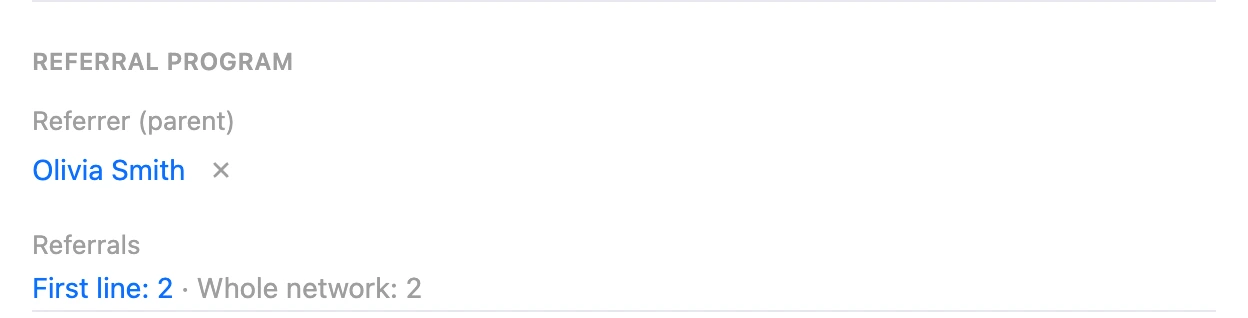
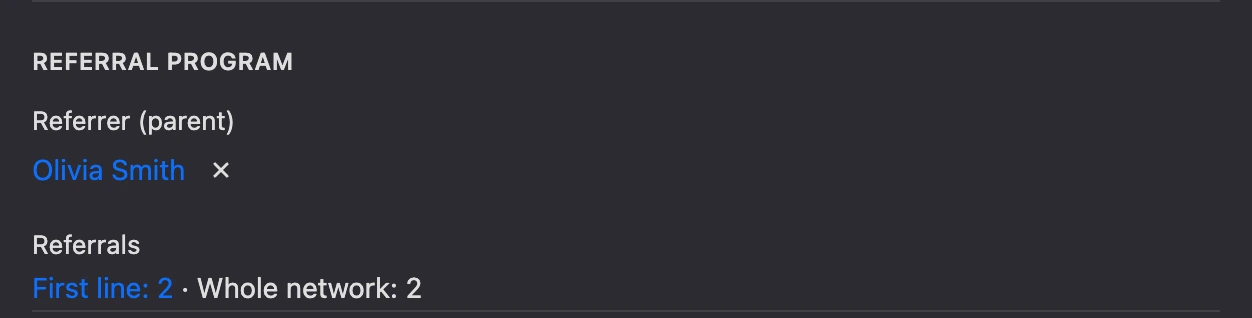
Here you can see who invited the contact ("Referrer") and how many people they have invited themselves ("Referrals"). How this works and how to assign a referrer manually is on the Accounts and referrals page.
Contact data
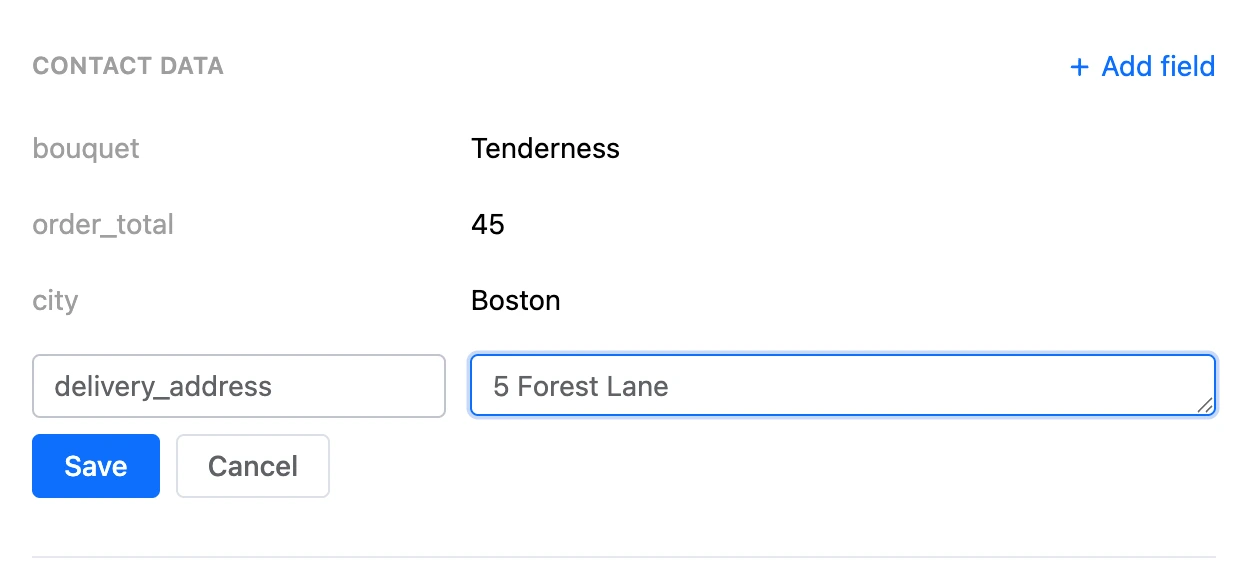
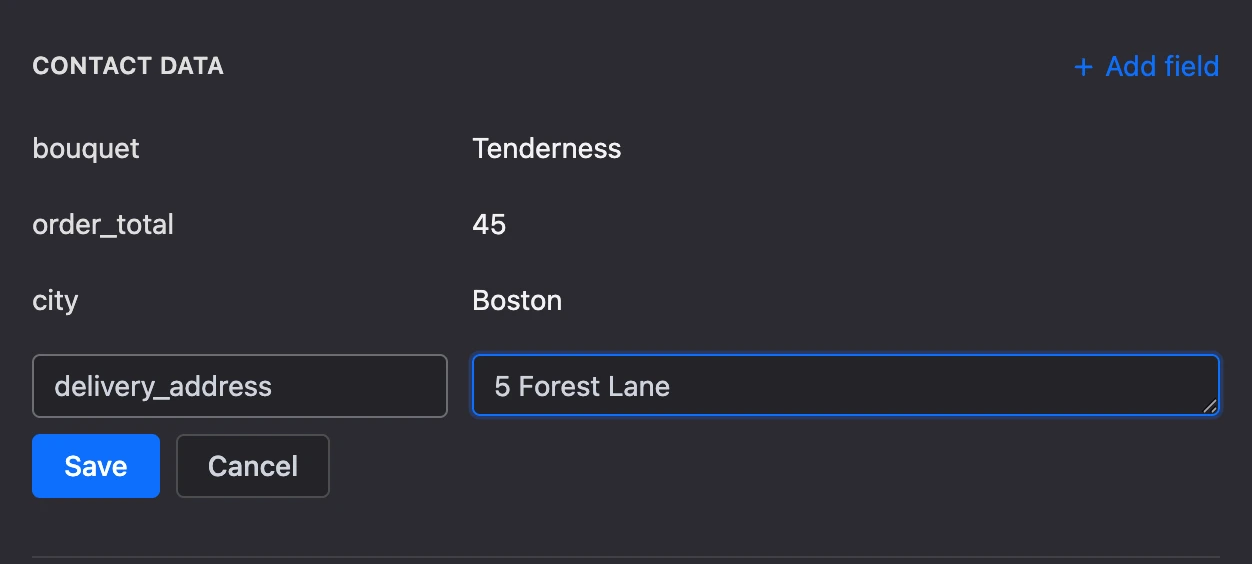
The "Contact data" section holds the contact's variables: the answers the bot has saved in the course of the scenario and the values you have added yourself.
- Add. Click "Add field", enter a name and a value, click "Save". When you start typing the name, the platform suggests variables that already exist in the bot.
- Change. Click the row or the pencil, edit the value and click "Save" or press Enter. Esc cancels the edit. A variable's name cannot be changed.
- Copy the value — the copy icon in the row.
- Delete — the bin icon in the row.
A variable's value is up to 4096 characters. If there are no variables yet, the section says "No fields yet".
What variables are and how to insert them into messages is on the Tags and variables page.
Tags
Under the data are the contact's tags. "Add" sets a tag: type the name and press Enter or choose a tag from the hints. The cross on a tag removes it. Changes are saved right away.


The card in other sections
The same card opens in the "Messages" section next to the conversation and in the contact window on a deal's page in the CRM. There, instead of deletion, there is the "Open contact page" button.
The card updates on its own: if the scenario or another team member has changed the contact's data, the new values appear without reloading the page.
Deleting a contact
Click "⋯" in the card's header, choose "Delete contact" and confirm the action.
Warning
Together with the contact, all the information about them is deleted, including accounts with a positive balance. A contact cannot be restored.
If the person writes to the bot after the deletion, they become a new contact and start the scenario from the beginning. What else changes on deletion and how to delete many contacts at once is on the List of contacts page.
If something does not work
- "Invalid phone number." The number must have from 8 to 15 digits. A "+" at the beginning, spaces, brackets, hyphens and dots are allowed.
- "A field with this name already exists". The contact already has a variable with this name. Change its value instead of adding a new one.
- There is no "Waits" section. The contact has no delayed sendings from the "Delay" and "Timer" blocks at the moment.