

Transfer to another account
A transfer changes the bot's owner. The bot moves to another account as a whole — with its scenarios, contacts, conversations and connected messengers — and disappears from yours. It does not stop working in the process.
This is how, for example, a contractor hands a customer a bot they built and launched in their own account.
If you need to hand over only the scenario, without contacts, make a template with access via link from the bot.
How a transfer goes
- The sender creates a transfer and enters the recipient's email.
- The recipient accepts it in their account within 7 days and chooses a project for the bot.
- 24 hours after acceptance, the bot moves to the recipient. Until that moment the sender can cancel the transfer.
Conditions
| Who | What is needed |
|---|---|
| Sender | To be the bot's owner. A Pro subscription. Two-factor authentication turned on in advance. The account's email has not changed in the last 14 days. The bot is not sending a mailing |
| Recipient | An account on the platform with this email. A Pro subscription. Room for the bot in the chosen project |
The conditions are checked three times: when the transfer is created, when it is accepted and before the bot changes owner. If something changed while waiting — the subscription ended, a mailing started — the transfer does not take place, and the bot stays with the sender.
Note
Two-factor authentication must be turned on not on the day of the transfer but in advance: the bot moves together with its contacts, and this way it cannot be taken even if the password is stolen. If it was turned on recently, the transfer window shows the date from which you can transfer.
What moves and what stays
The same list is shown in the transfer window — to both the sender and the recipient.
| Will move to the new owner | Will stay with the previous owner |
|---|---|
| The whole bot: scenarios, blocks with all settings, mailings | Records in the lists |
| Contacts and conversations with them | Payment history |
| Connected messengers — the bot keeps working without interruption | Settings of notifications about requests |
| Payment systems and other integrations connected to the bot — with their keys | Team member access |
| CRM pipelines and deals | Links to mini apps, shops, appointments, online schools, widgets and other account sections |
| List structure: names and fields | Google Sheets and amoCRM connections |
| AI chats about the bot |
What to pay attention to:
- Keys and payments. Payment systems, integrations and keys in blocks move as they are. Until the new owner replaces them with their own, payments through the bot go to the previous owner's accounts. Agree on the replacement in advance.
- Messenger tokens. The previous owner knows the bot tokens in the messengers. The new owner should change them after the transfer.
- Blocks that need to be reconfigured. Some blocks refer to sections of the previous owner's account — for the new owner such references are reset. How many such blocks there are is shown in the transfer window.
- Team members. The previous owner's team members lose access to the bot. Assignees in CRM deals are removed.
- Notifications about requests. The new owner sets up the notification recipients again.
- Scheduled mailings move together with the bot.
- The number of contacts. The bot's contacts are added to the new owner's contacts — the price of their plan depends on it. The recipient sees how many contacts the account will have after the transfer before accepting.
Transferring a bot
- In the list of bots, open the bot's "⋯" menu and choose "Transfer to another account".
- In the "Recipient email" field, enter the email the recipient's account is registered with.
- Check what will move to the new owner and what will stay with you.
- Tick "I confirm that I have the right to transfer the personal data of the bot’s contacts to another owner".
- In the "Two-factor authentication code" field, enter the code from the app or a recovery code.
- Click "Transfer bot".
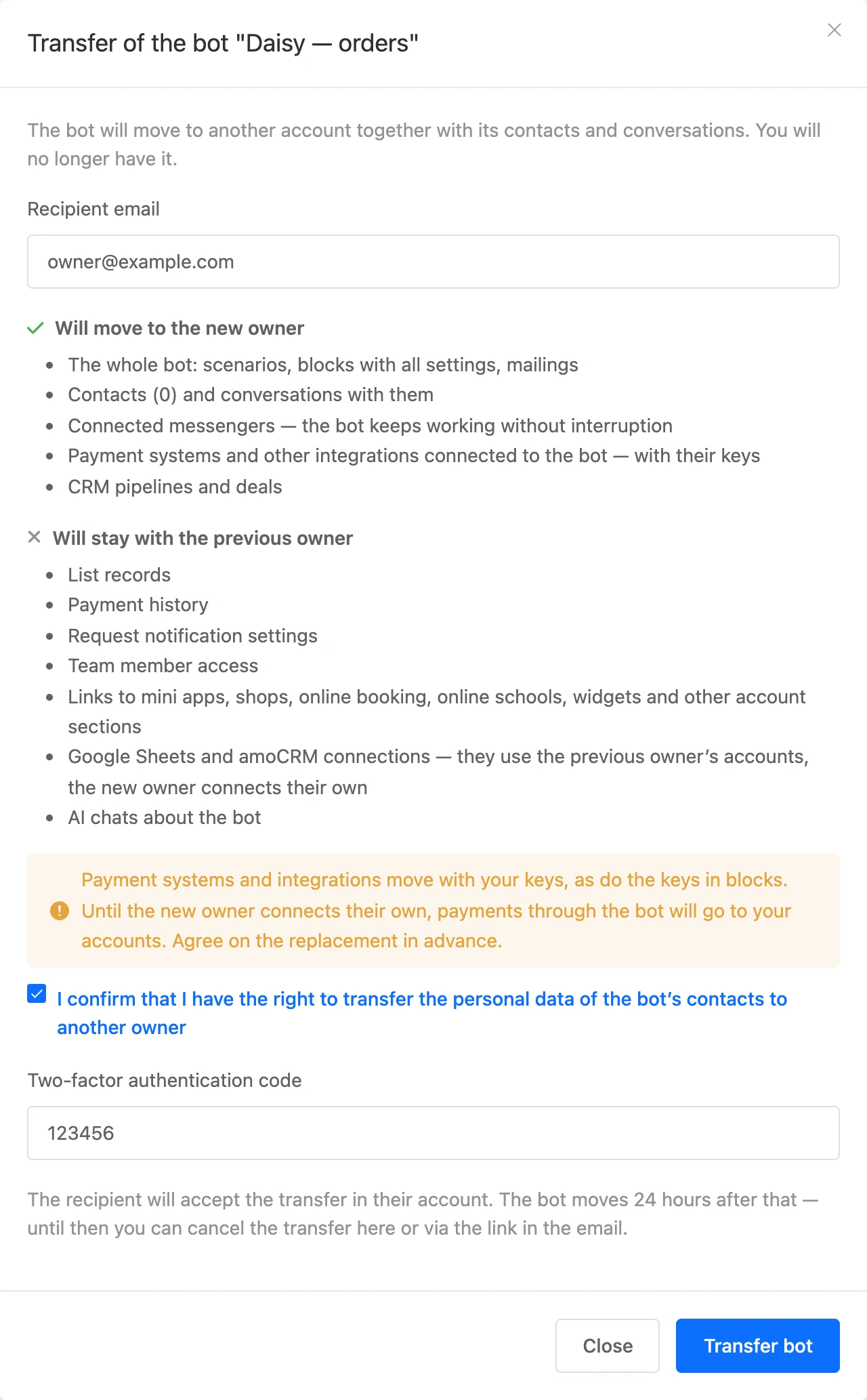
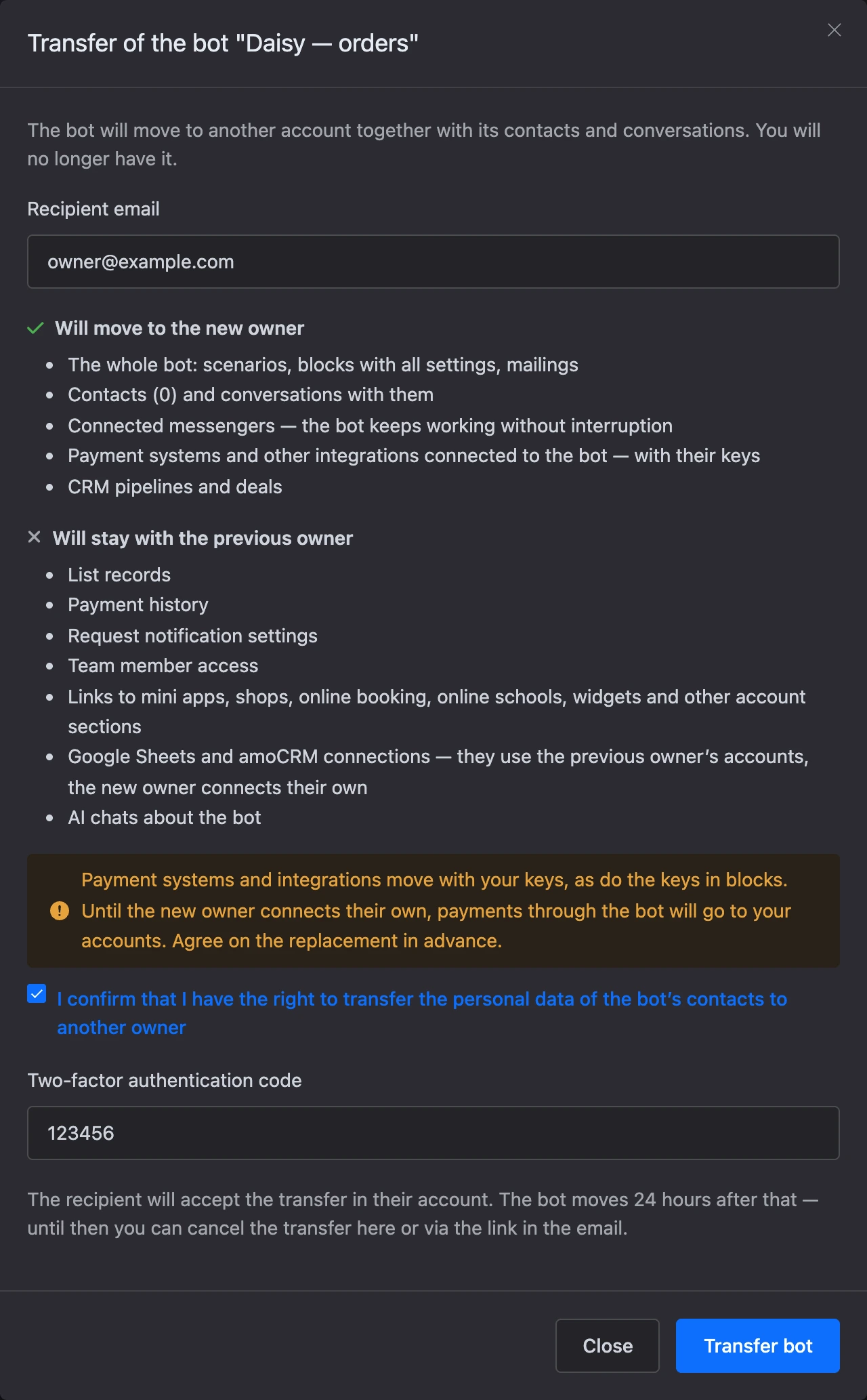
The recipient sees a notification in their account and gets an email. You get an email with the "Cancel transfer" link.
Important
Check the recipient's address. The window does not say whether an account with this email exists: if it does not, there is nobody to accept the transfer, and after 7 days it is cancelled by itself.
No more than three bots can be transferred at the same time.
If two-factor authentication is not enabled, the window shows the "Open security settings" button instead of the form.
Accepting a bot
A transfer is announced by a notification in your account, an email and a line above the list of bots: "The chatbot … is being transferred to you by …" with the "View" link.
- Open the "Bot transfer" page by the link from the notification or the email.
- Check what moves to you and how many contacts the account will have.
- In the "Project to add the bot to" field, choose one of your projects.
- Click "Accept bot". To refuse, click "Decline".
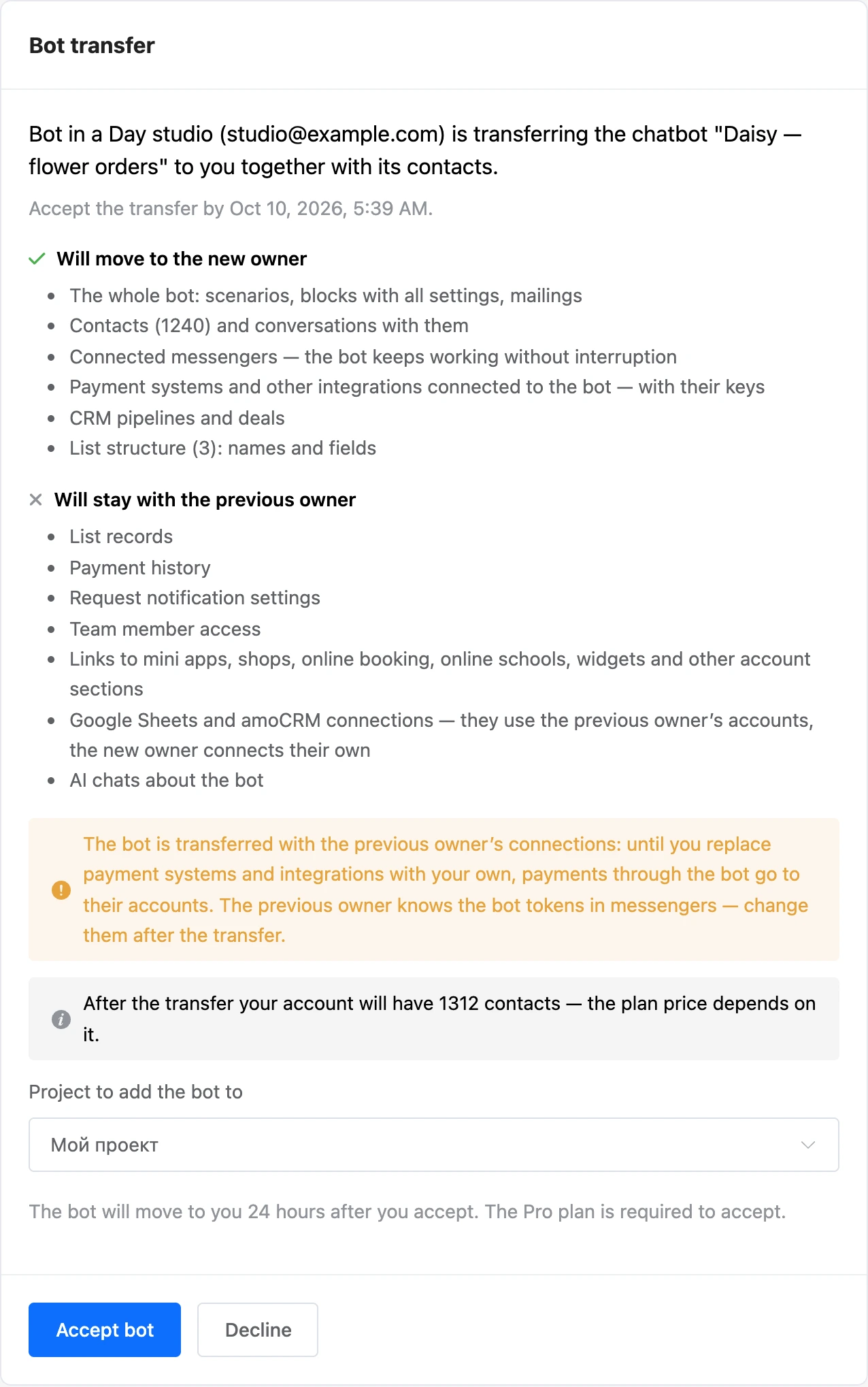
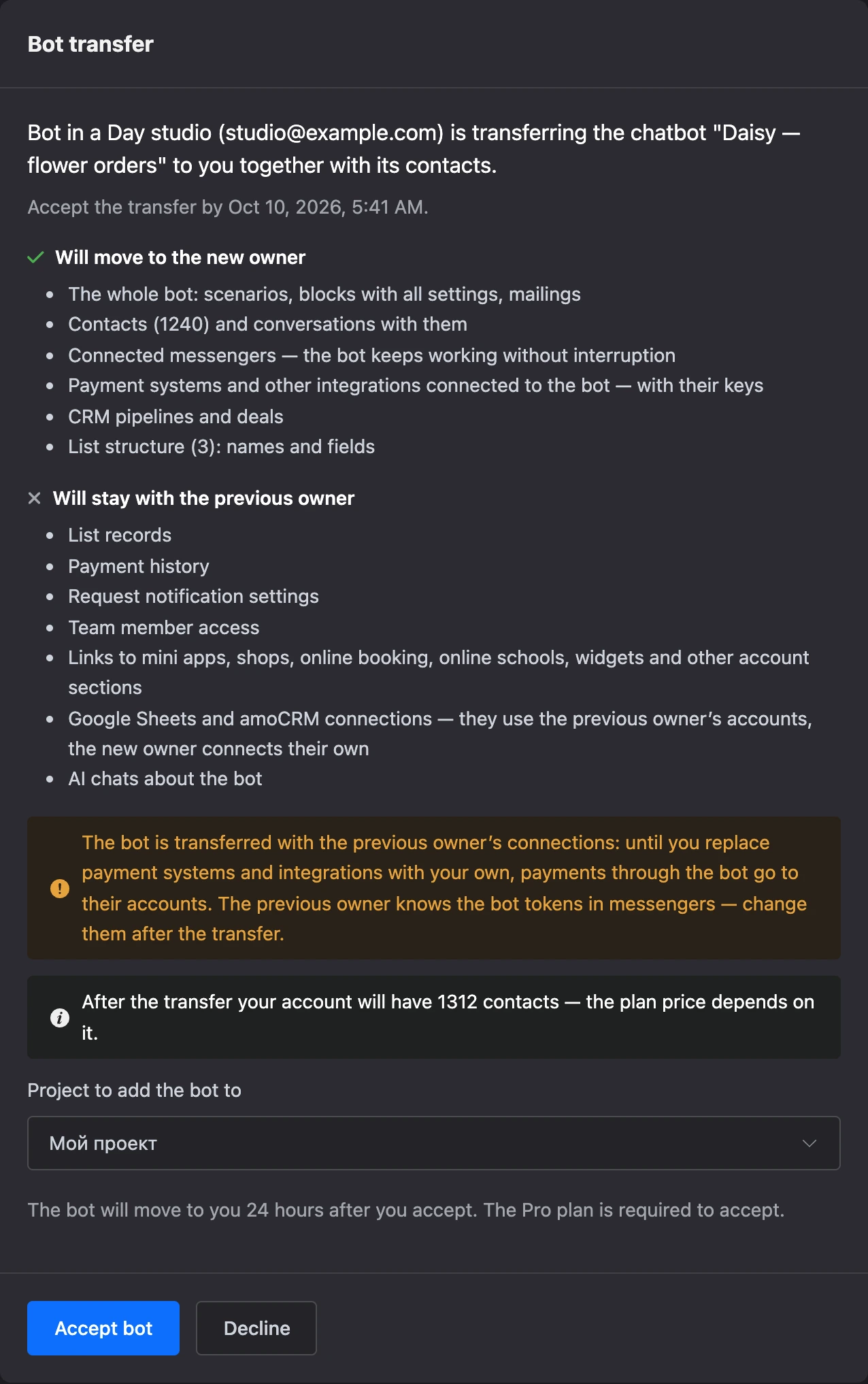
The bot appears in the chosen project 24 hours after acceptance — the page shows the date. When the bot has moved, a notification and an email arrive.
After the transfer:
- set up notifications about requests;
- replace the previous owner's payment systems and integrations with your own;
- change the bot tokens in the messengers — for example, via BotFather in Telegram;
- invite your team members to the bot;
- check the blocks that need to be reconfigured.
Cancelling a transfer
Until the bot has moved to the recipient, the sender can cancel the transfer:
- in your account — choose "Transfer to another account" in the bot's menu again and click "Cancel transfer";
- by the link from the email — the "Cancel transfer" button works without signing in to your account.


The email with the cancellation link comes twice: when the transfer is created and when the recipient accepts it.
Warning
If you did not start a transfer but the email arrived, cancel it by the link, change your password and check the active sessions in the security settings.
After the recipient has accepted the transfer, the bot's team members and its project cannot be changed until the transfer is completed or cancelled.
If something does not work
| Message | What to do |
|---|---|
| "Bot transfer is available on the Pro plan." | Get a Pro subscription |
| "You need the Pro plan to accept the bot." | The recipient needs a Pro subscription too |
| "To transfer a bot, enable two-factor authentication." | Turn it on in the account's security settings |
| "Two-factor authentication was enabled recently. You will be able to transfer the bot from …" | Wait until the given date |
| "The account email was changed recently. You will be able to transfer the bot from …" | Wait until the given date |
| "The bot is sending a mailing. Wait for it to finish or stop it." | You can transfer when none of the bot's mailings is being sent |
| "This bot is already being transferred. Cancel the current transfer to start a new one." | A bot can have only one transfer |
| "You can transfer no more than 3 bots at a time." | Wait until one of the transfers is completed or cancel it |
| "You cannot transfer a bot to yourself." | Enter the email of another account |
| "Invalid confirmation code." | Enter a fresh code from the app or a recovery code |
| "A project cannot have more than 100 bots. Choose another project." | The recipient needs to choose another project |
| "Transfer not found. It may be addressed to another account." | Sign in to the account whose email the transfer was sent to |
| "The transfer was canceled or has expired." | Ask the sender to create the transfer again |