

Deal card
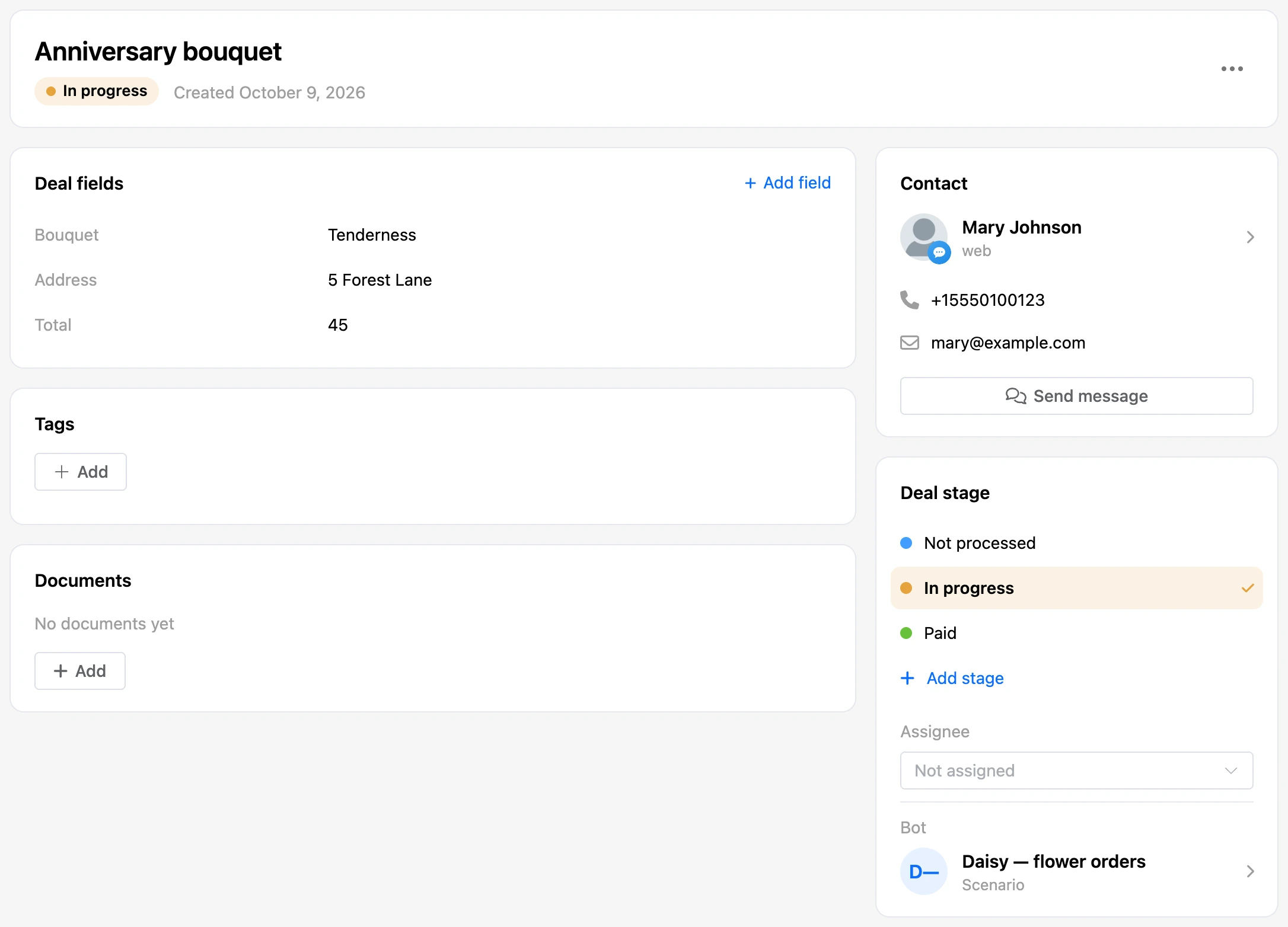
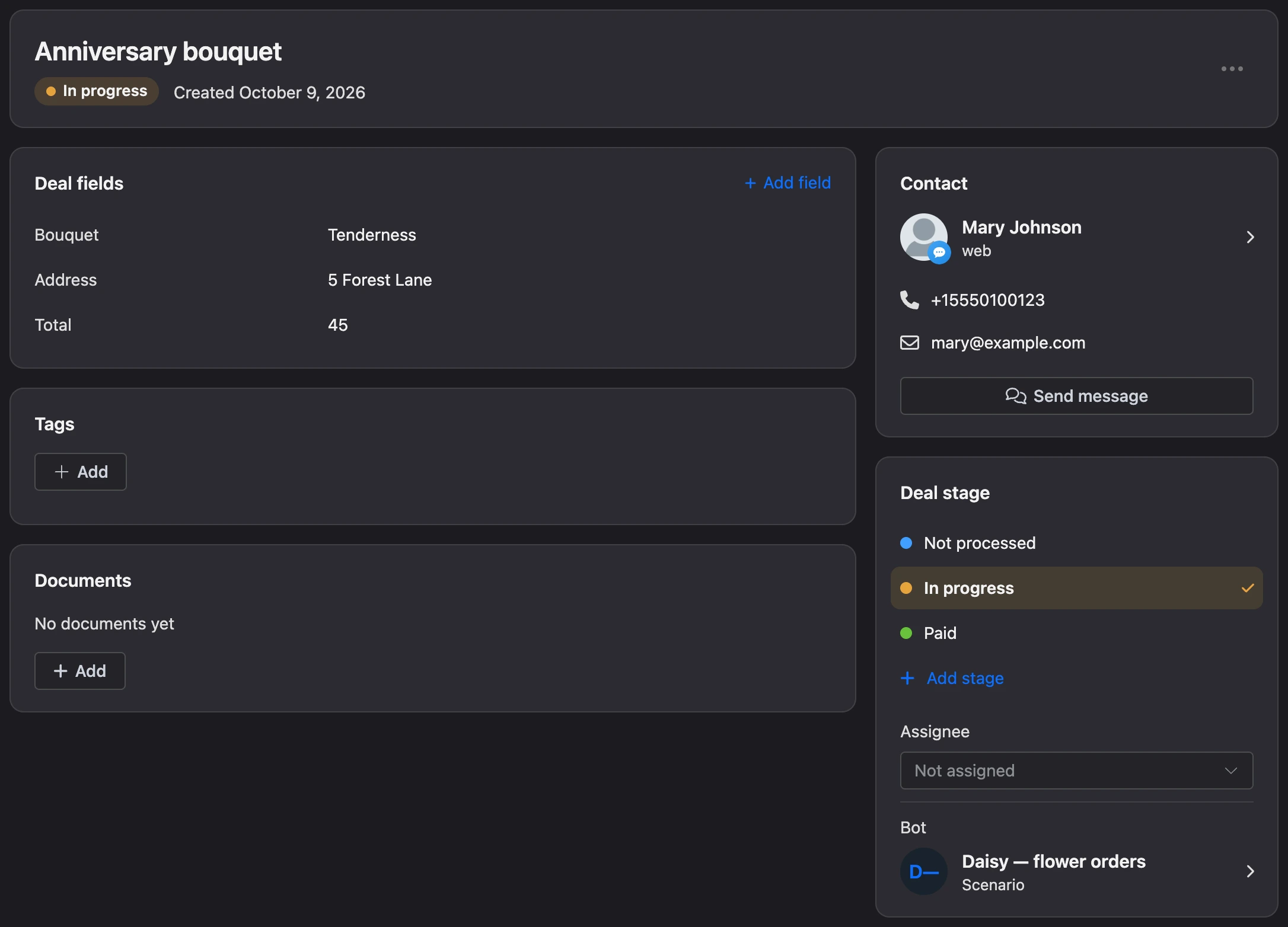
The deal card is a page that gathers everything about one request: who the customer is and how to reach them, which stage the deal is at, who is responsible for it and what the customer answered the bot. It opens with a click on a deal on the board or in the list.
The "All deals" link at the top returns to the board.
Name and state
The deal's name is at the top of the page. Click it, type your own and press Enter or simply leave the field: the name is saved. Deals from the scenario are called "New request", so a clear name — for example, "Bouquet for 14 February, Maria" — helps tell them apart on the board.
Under the name are the current stage and the date after the word "Created".
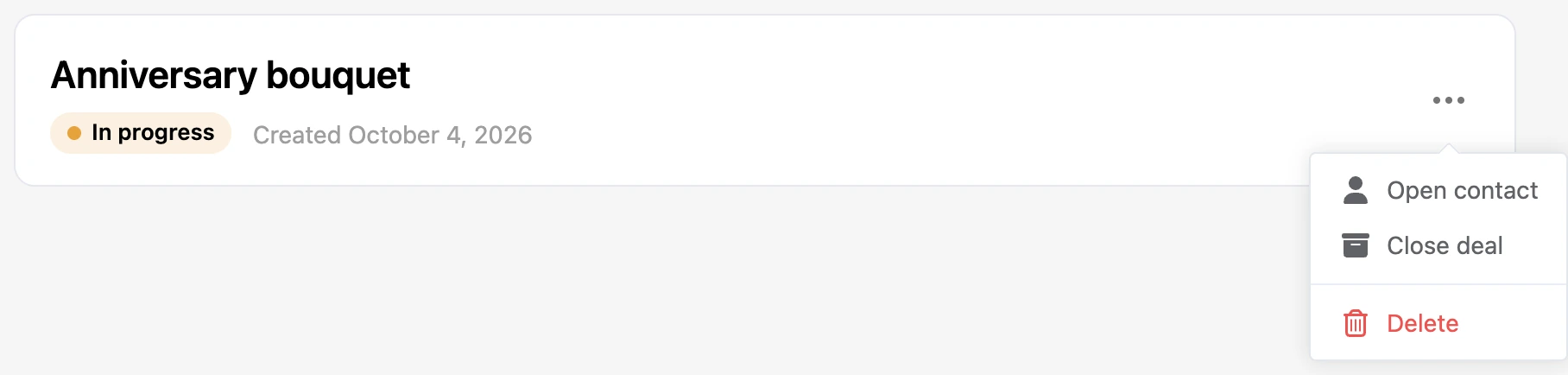
In the "⋯" menu on the right:
- "Open contact" — a window with the customer's data;
- "Close deal" or, for a closed one, "Return to board";
- "Delete".
Contact
The "Contact" block shows whose deal this is: the name, the avatar and the messenger the person came from. Below are the ways to reach them that the bot knows: the messenger username, phone, email, address. Next to each is the "Copy" button.
The "Send message" button opens the conversation with the customer in the "Messages" section.
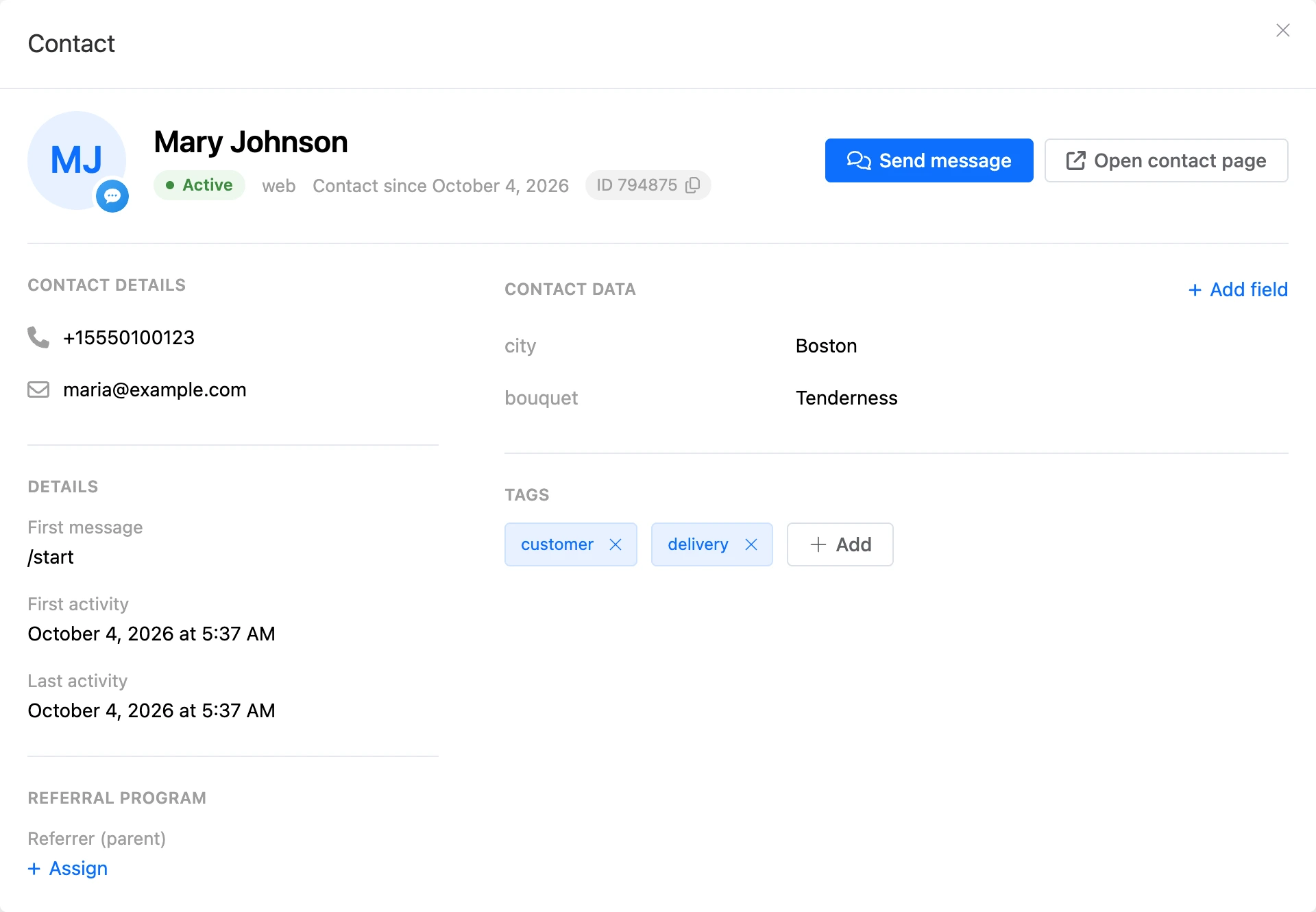
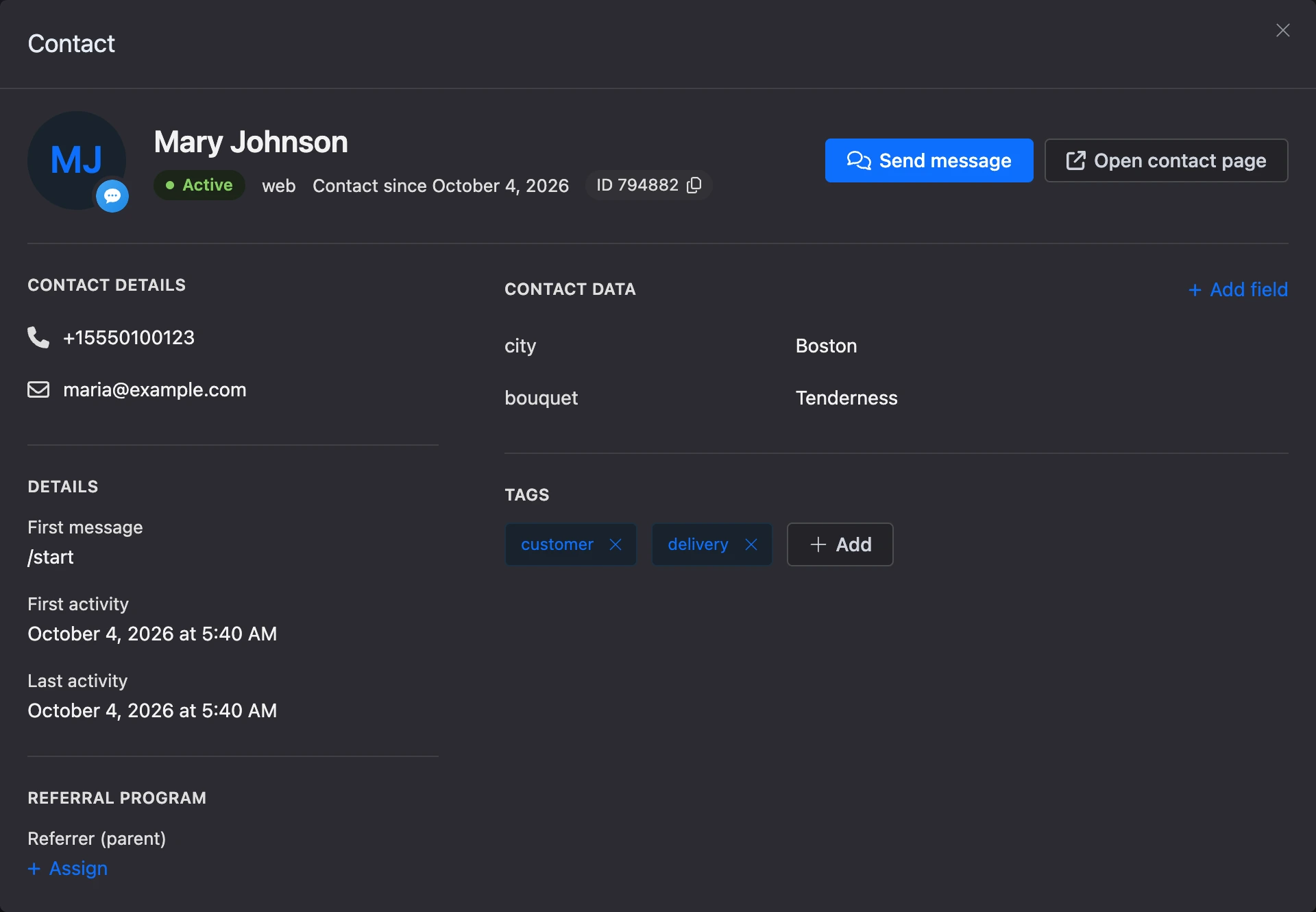
A click on the name opens the "Contact" window. What it contains depends on permissions:
- The bot's owner and team members with the "Editing scenarios" permission see the full contact card — the same as in the contacts section, with editing in place. The "Open contact page" button opens it in a new tab.
- Other team members see brief details: the contact's state, the messenger and the date since which they have been in the base, and the "Contact details", "Contact data", "Tags" and "Details" blocks — the first message and the marks the person came with. The "Send message" button is available to those whose role has the "Messaging with customers" permission, and the "Call" button — if the phone is known.
A deal is tied to one contact, and the contact cannot be changed.
Deal stage
The "Deal stage" block lists all stages of the pipeline, with the current one ticked. Click another stage — the deal moves to it.
The bot's owner can create a stage right here: "Add stage", then the name in the "Name" field and "Create". You can change the colour, order and names of stages on the board.
Assignee
The "Assignee" field shows who handles the deal. While nobody is chosen, it says "Not assigned".
You can choose the bot's owner or a team member whose role has a permission from the "CRM" group. To remove the assignee, clear the field.
- The assignee can be changed by the bot's owner and by team members with the "CRM administration" permission. The others see the name without a choice.
- The one who is assigned gets a notification in their account with a link to the deal, and the one who is removed gets a notification that they were removed.
- If a team member has been removed from the team, they stay in the field with the "no access" mark until you choose someone else.
The assignee can also be set from the scenario — with the "Deal assignee" block.
Below, in the "Bot" field, is a link to the scenario of the bot the deal came from.
Deal fields
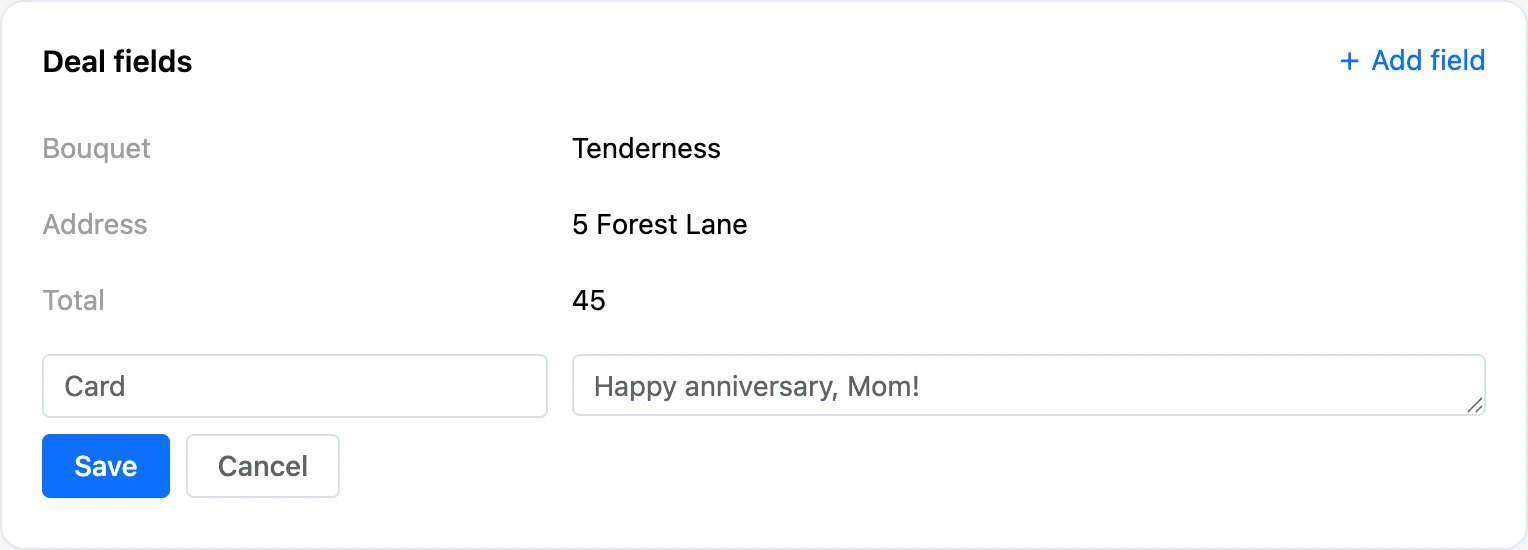
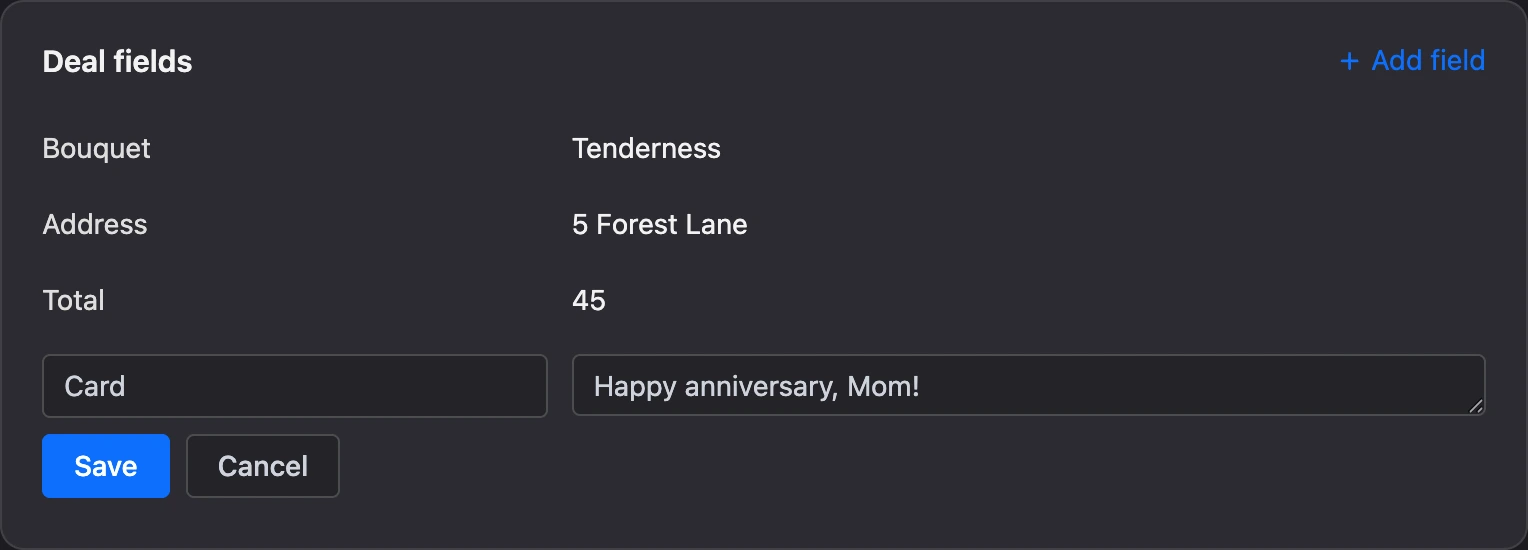
The "Deal fields" block holds the request's data. For a deal from the scenario, these are the contact's variables at the moment of the request: answers to the bot's questions, chosen options, the phone. While there are no fields, it says "No fields yet".
- Changing a value — click the row, correct the text and click "Save". Enter saves too, Esc cancels the edit.
- Copying a value — the button appears when you hover over the row.
- Adding a field — click "Add field", fill in "Field name" and "Value", then "Save". The name can be chosen from the hints: they contain the fields of other deals of the pipeline and the bot's variables.
- Deleting a field — the bin icon in the row; the platform asks for confirmation.
Limits: a field's name is up to 100 characters, a value is up to 10,000. Names within one deal do not repeat: on a repeat, the platform replies "A field with this name already exists".
Note
Deal fields are a copy. Editing a field in a deal does not change the contact's variable, and the contact's new answers do not change a deal that is already created.
A deal has no separate field for the amount. If you need the amount, add it as an ordinary field, for example "Amount".
Tags
The "Tags" block holds the deal's tags. For a deal from the scenario, these are the contact's tags at the moment of the request. They can be added and removed — this does not affect the tags of the contact itself. The tags are visible on the deal's card on the board.
Documents
In the "Documents" block, files are attached to the deal — an invoice, a contract, a layout.
- Click "Add".
- Enter the file name — this is the name under which the document will be listed in the deal, for example "Invoice". If such a name has already been used in other deals, choose it from the hint.
- Press Enter — a row with this name appears in the block.
- Upload a file into it.
The file can be replaced or removed. An empty row is removed with the "Delete" button.
Document names are shared by the whole pipeline. This is needed so that the bot can send the file to the customer: in the "Message chain" block, the "Document from CRM" element takes the file with the chosen name from this contact's deal. This way you can, for example, attach an invoice to a deal, and the bot will send it to the customer when the deal reaches the right stage.
Documents can be attached by the bot's owner and by team members with the "CRM administration" permission.
Closing, returning, deleting
Closing. Choose "Close deal" in the "⋯" menu. The deal is hidden from the board, and the "Deal closed" banner with the "Return to board" button appears on its page. A closed deal can be opened and edited like a regular one.


Returning. The "Return to board" button on the banner or the same item in the "⋯" menu. The deal returns to its stage.
Deleting. The "Delete" item in the "⋯" menu; after confirmation the deal is deleted for good. Deals can be deleted by the bot's owner and by team members with the "CRM administration" permission.
The scenario can close a deal too — with the "Close deal" block.
What the card does not have
A deal has no comments, tasks or change history. A note on a deal can be saved as an ordinary field, and the arrangements with the customer stay in the conversation — in the "Messages" section.