

Installing on a website
The widget is added to a website with one piece of code. You need to insert it only once: everything you change and save in the builder later appears on the website by itself.
Get the code
- Open the widget and choose "Add to website" in the menu on the left.
- Under the heading "Place this code in the footer of your website" is the widget code. Click "Copy".

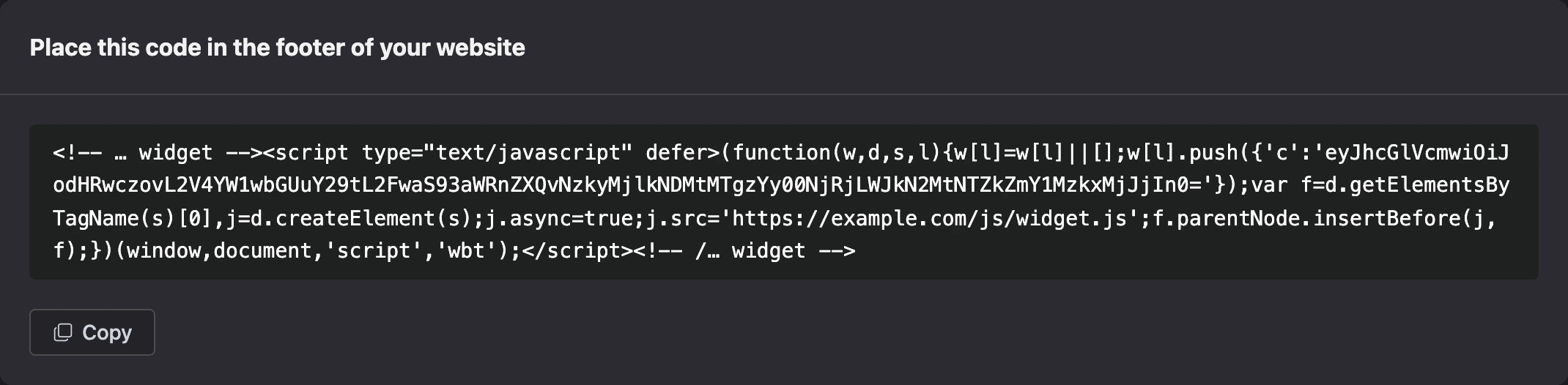
The code looks like this — a comment with the platform's name and a small script between them:
<!-- … widget --><script type="text/javascript" defer>(function(w,d,s,l){w[l]=w[l]||[];w[l].push({'c':'…'});var f=d.getElementsByTagName(s)[0],j=d.createElement(s);j.async=true;j.src='https://…/js/widget.js';f.parentNode.insertBefore(j,f);})(window,document,'script','wbt');</script><!-- /… widget -->
Each widget has its own code: the address of this particular widget is built into it. Copy the code in full and do not change anything in it.
Insert the code into the website
The code goes into the website footer — before the closing </body> tag, on every page where the widget is needed. Usually there is one shared place for this:
- in website builders — a field for your own code in the site or page settings;
- in content management systems — a shared footer template or a setting for inserting scripts;
- on a hand-coded website — a shared file with the page footer.
The code also works in the site header, inside <head>: the widget waits for the page to load.
After inserting it, open the website and refresh the page. The widget button appears in the bottom right corner.
Important
One widget works on one page. The code of a second widget on the same page will not work.
What to keep in mind
- Domains. If the "Website domains" field is filled in the widget settings, the widget appears only on the listed websites. An empty field means any website. See the Creating and setting up a widget page for details.
- Website loading. The widget script loads separately from the page and does not delay its display.
- Language. The widget's service labels adapt to the language of the website or the visitor's browser. The title, description and the names of your own links are shown as you wrote them.
Remove the widget from the website
Delete the widget code from the website's pages. If you delete the widget itself in your account, it also stops showing, but the leftover code stays on the website.
If the widget does not appear
- The code is inserted on the wrong page or not saved. Open the page source in the browser and look for
widget.jsin it. - The website is not in "Website domains". Add the website's domain to the widget settings or clear the field. A domain and its subdomains are different entries:
shop.example.comneeds either itself or*.example.com. - The page already has the code of another widget. Leave one.
- The widget has been taken down by a moderator. You get a notification about it — see Widget checks by the platform.
- You see an old version of the widget. Refresh the website page: the widget settings load when the page opens.