

Tickets
A ticket is a customer request: a stretch of the conversation from the question to its resolution. A ticket has a number, a status and an assignee. With tickets you can see which customers are waiting for a reply, which team member is handling a request and what has already been resolved.
Tickets are turned off by default, and the "Messages" section works as usual.
How to turn them on
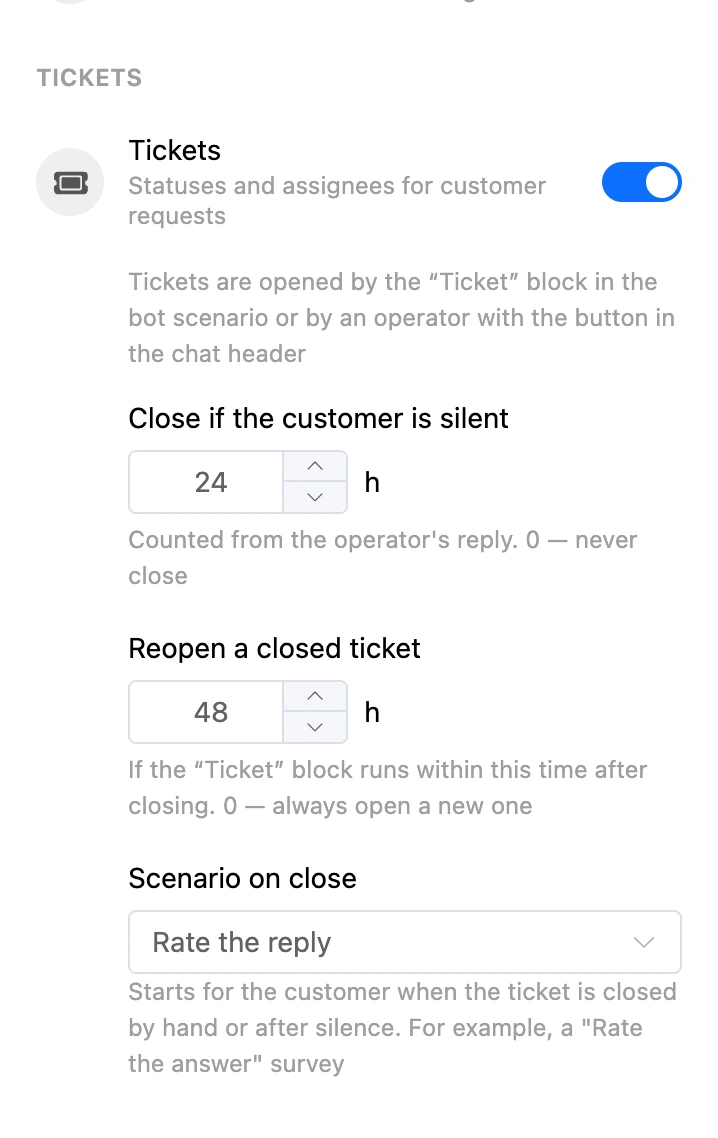
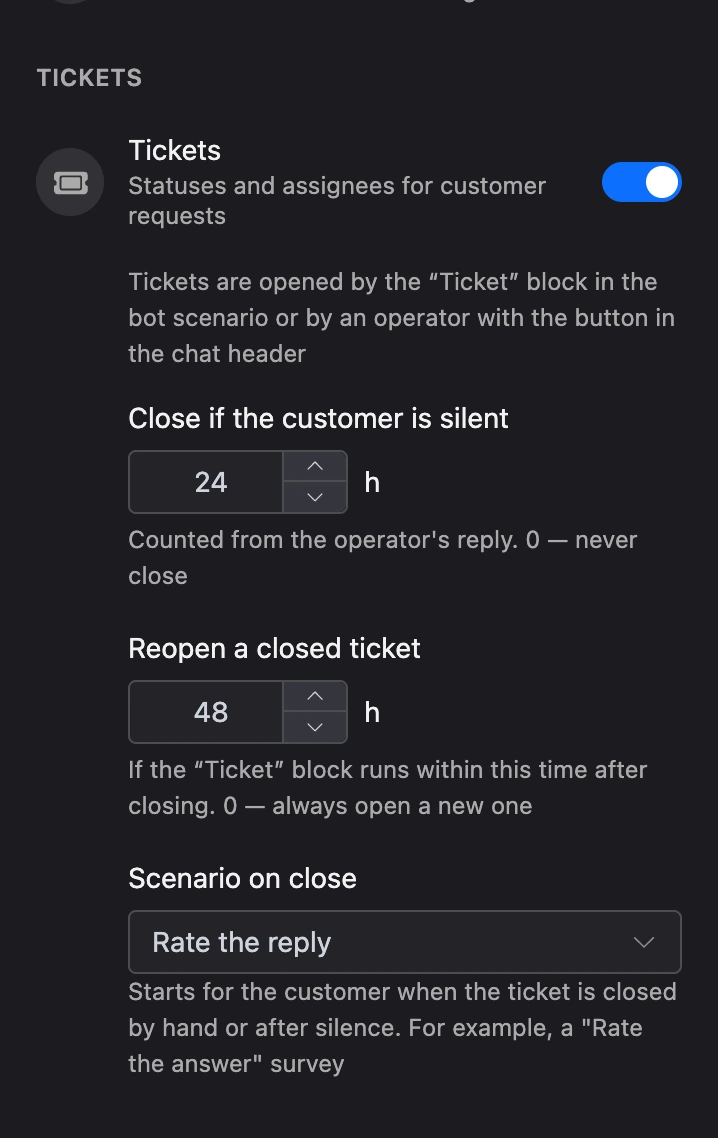
The "⋮" button next to the search opens the section settings. At the bottom is the "Tickets" block:
- "Tickets" — the main switch. Tickets are turned on for the whole bot: for all team members and all channels.
- "Close if the customer is silent" — how many hours after the operator's reply to close the ticket if the customer has not written. 0 — never close.
- "Reopen a closed ticket" — if the "Ticket" block runs within this time after closing, the previous ticket comes back instead of a new one opening. 0 — always open a new one.
- "Scenario on close" — a bot scenario that starts for the customer when the ticket is closed by hand or after silence. For example, a "Rate the answer" survey.
The settings can be changed by the bot's owner and by a team member with the "Bot settings" permission.
A ticket is opened by the "Ticket" block in the bot scenario — for example, after a "Contact an operator" button. Customer messages do not open tickets. A ticket can also be opened manually — with the "Open ticket" button in the conversation's header.
Statuses
| Status | What it means |
|---|---|
| "Awaiting reply" | The customer has written and is waiting for a team member's reply |
| "Awaiting customer" | A team member has replied, it is the customer's turn |
| "Closed" | The request is resolved |
The status changes on its own: a team member's reply — in the "Messages" section, from amoCRM or through the API — moves the ticket to "Awaiting customer", a new message from the customer moves it back to "Awaiting reply". Only tickets in the "Awaiting customer" status are closed after silence: an unanswered ticket stays open until someone closes it by hand. If you set "Awaiting customer" by hand, the silence is counted from that moment.
List of conversations
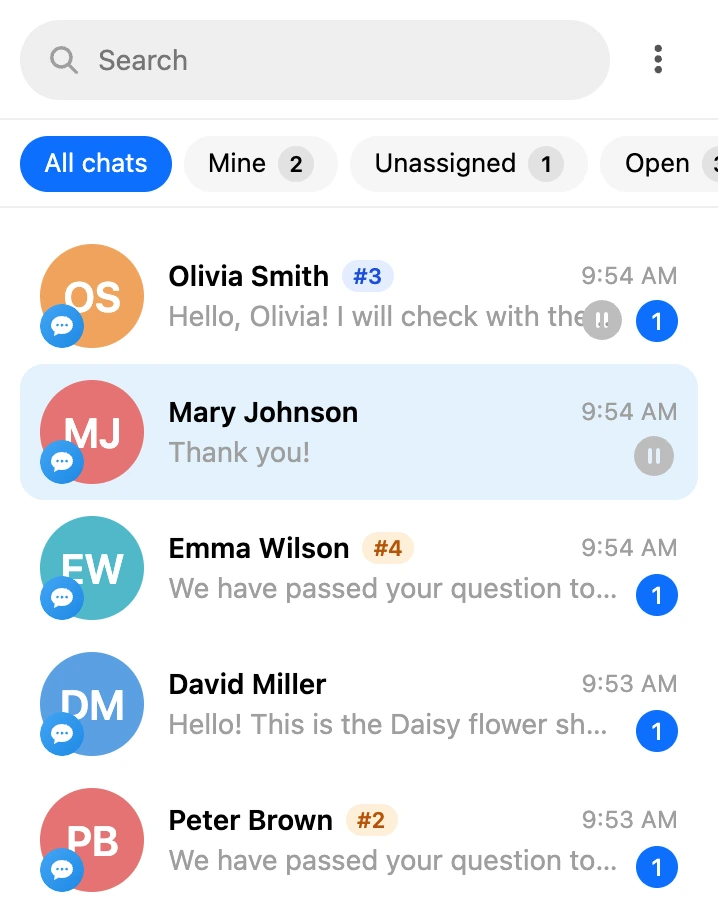
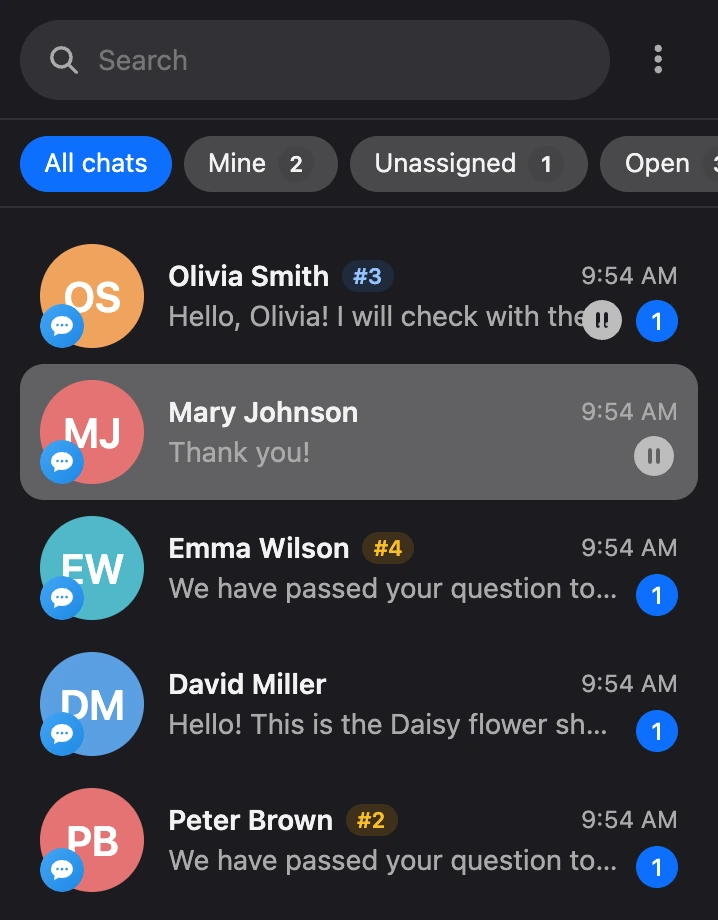
When tickets are turned on, tabs appear above the conversation list. "All chats" is selected by default — the list is the same as without tickets. You can open a ticket manually from any conversation.
The tabs, three of them with counters:
- "All chats" — all of the bot's conversations, with and without tickets;
- "Mine" — open tickets assigned to you;
- "Unassigned" — open tickets no one has taken;
- "Open" — all tickets that are not closed;
- "Closed" — conversations whose tickets are already closed.
One tab is always selected. The contact's name in the list carries the ticket number, and its colour shows the status.
A ticket in the conversation
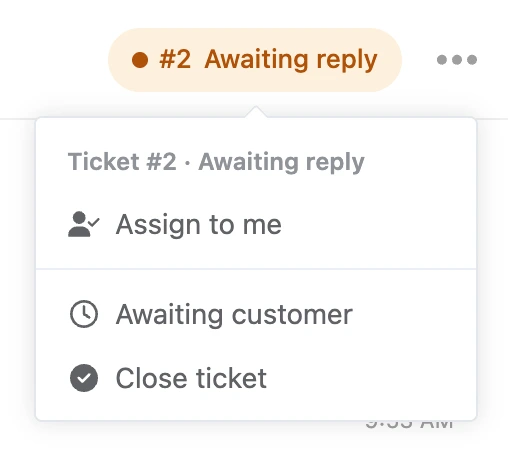
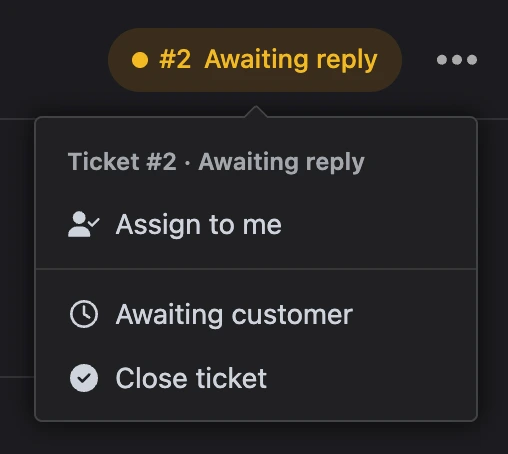
The conversation's header shows the number, the status and the assignee's avatar. Clicking them opens a menu:
- "Assign to me" and the list of team members — set the assignee;
- "Remove assignee";
- "Awaiting customer" or "Awaiting reply" — change the status by hand;
- "Close ticket".
If there is no assignee, the first team member who replies to the customer becomes one.
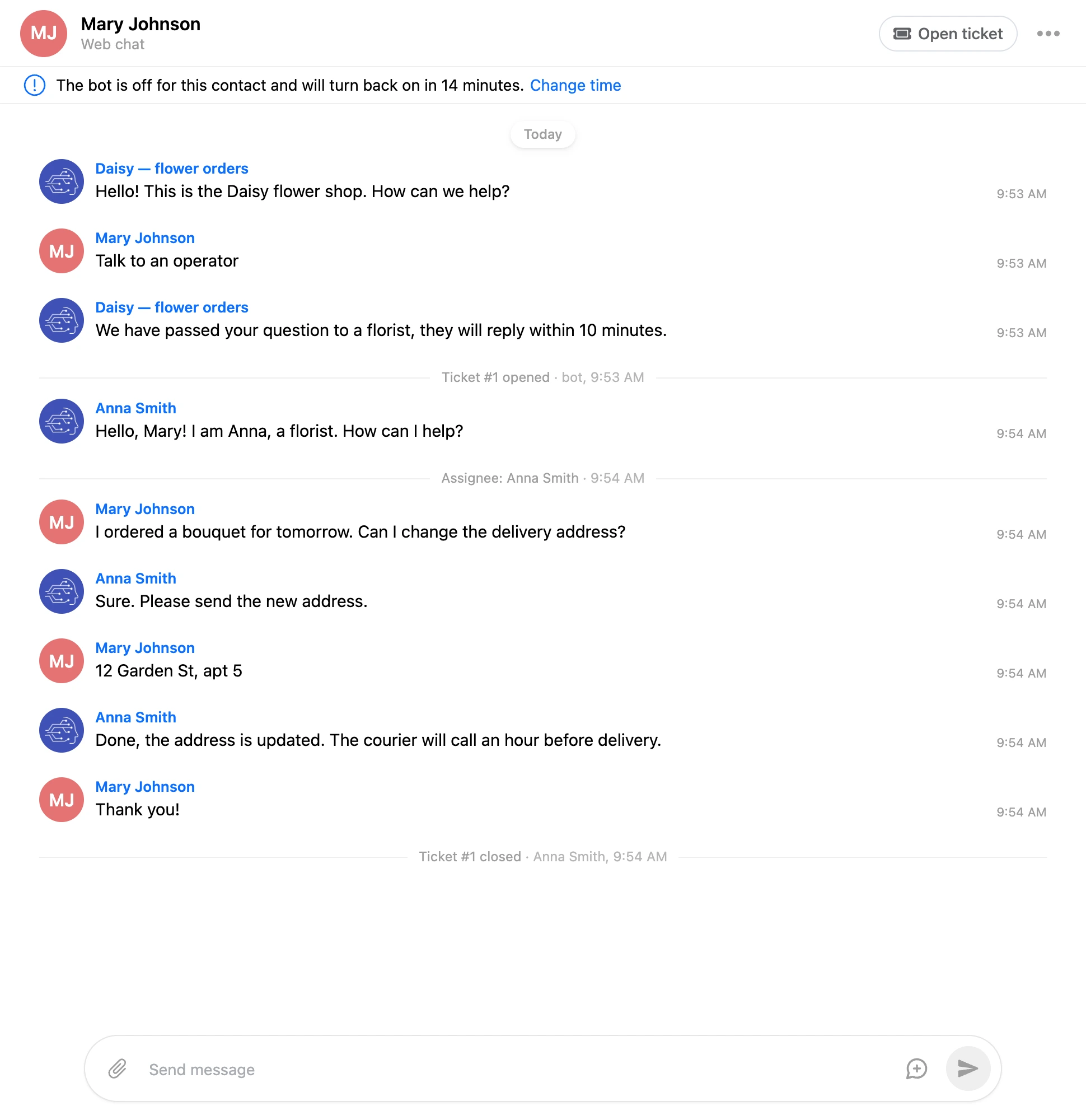
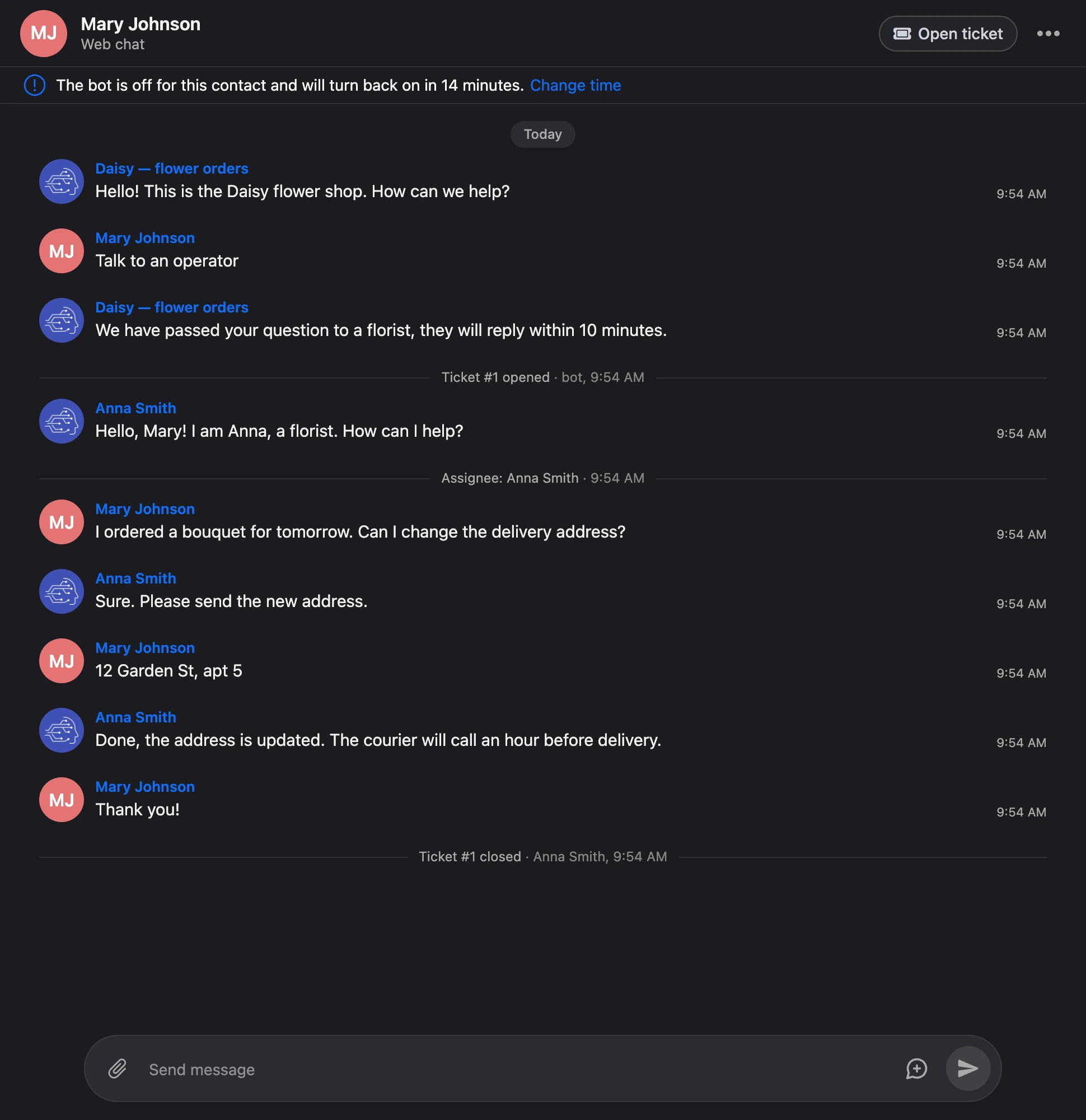
The conversation feed shows the ticket's history: opening and closing, reopening, assignee changes and manual status changes — with the team member's name and the time. Status changes that happen on their own from messages are not shown: you can see them from the conversation. All the contact's tickets are in the right panel, under the contact's card.
Ticket numbers go in order within the bot: #1, #2, #3.
Notifications
- Everyone who can take a new unassigned ticket learns about it: the owner and team members with access to messaging.
- When a ticket is assigned to a team member, they receive a notification that the ticket is assigned to them.
Whoever opened the ticket or set the assignee themselves does not receive a notification. Notifications arrive in the account, and in Telegram and MAX — if the notification bot is connected there and the "Tickets" category is turned on.
Staff access
| What a team member sees | Permission in the role |
|---|---|
| All conversations and all tickets | "Messaging with customers" |
| Only conversations with their own tickets and unassigned tickets | "Ticket chats: only own and unassigned" |
A team member with the second permission sees a conversation while its open ticket is assigned to them or is unassigned. If there is no open ticket, they see the conversations where they handled past tickets. Other people's conversations cannot be found by search either. While the bot's tickets are turned off, such a team member sees no conversations at all.
How to set up a role is in the Settings section.
Statistics
The bot's "Statistics" section has a "Tickets" tab: how many tickets were opened and closed over the period, the time to first reply and to resolution, and the work of each assignee. See the Reports of the "Statistics" section page for details.