

Help and support
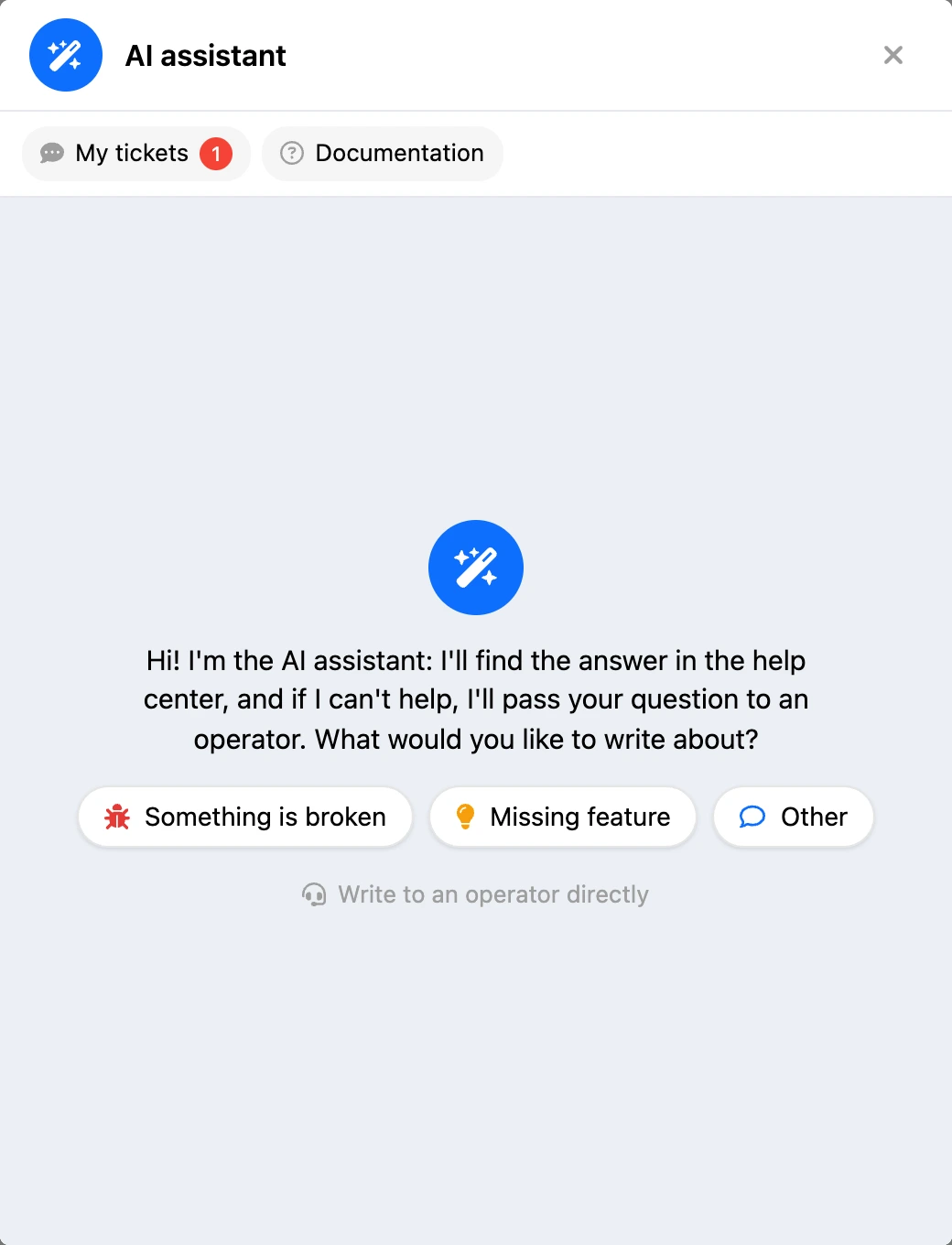
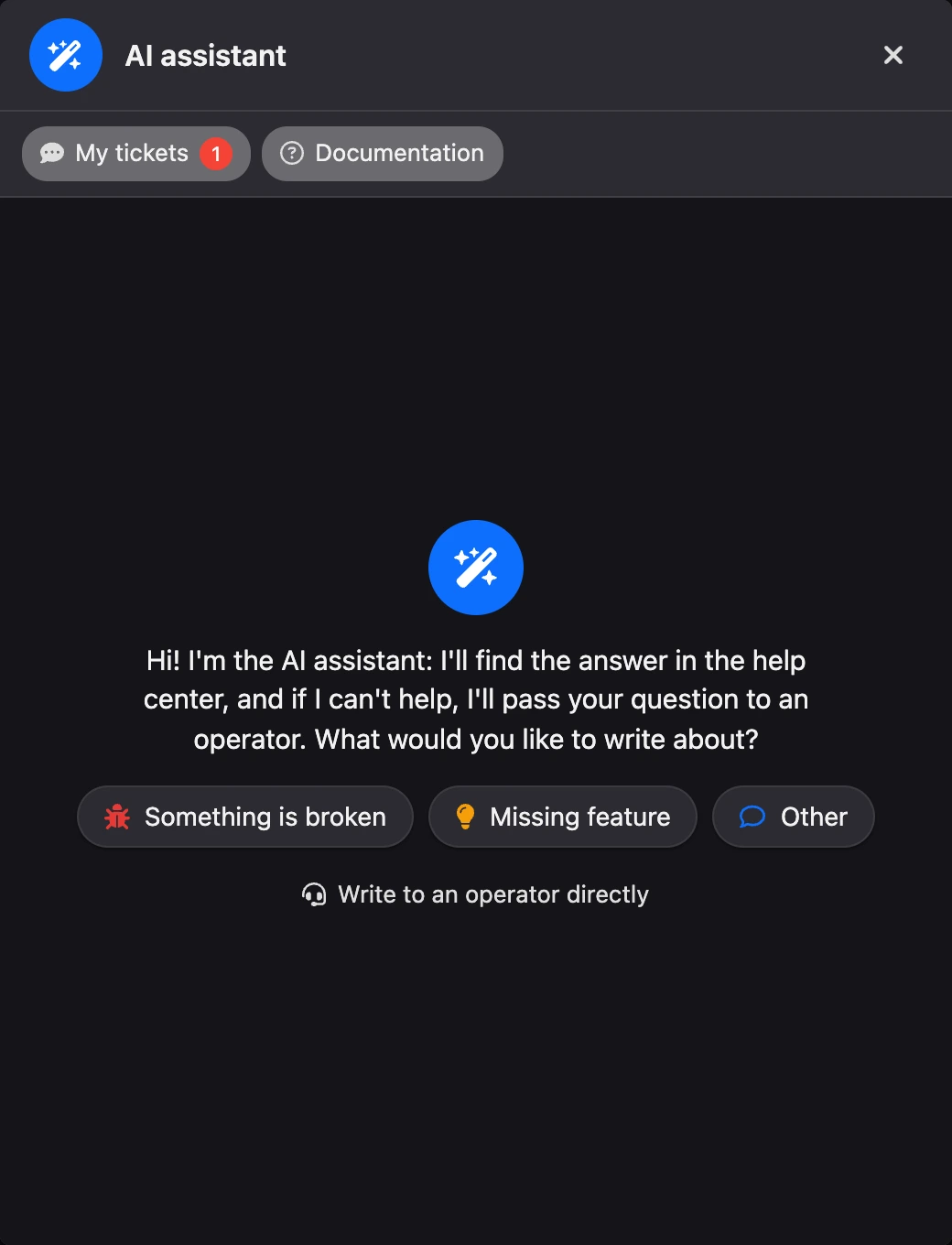
If something is broken, a feature is missing or you have a question, write to support right from the dashboard. Each request is called a ticket: it keeps the whole conversation with support about one question.
Where to find it
The "Help" button is in the dashboard header. The window opens on top of the current page, so you do not need to leave it. The address of this page and your browser details are attached to the ticket automatically — this helps support see where the problem happened.
The side menu of the builders (bot, mini app, landing page and others) also has a "Help" item. It opens the same window, and the "Documentation" link in it leads to the help section about that builder.
At the top of the window there are two links:
- "My tickets" — all your requests. The number on the link shows how many replies you have not read yet.
- "Documentation" — the Watbot help center.
How to contact support
- Click "Help" in the dashboard header.
- Pick a topic: "Something is broken", "Missing feature" or "Other".
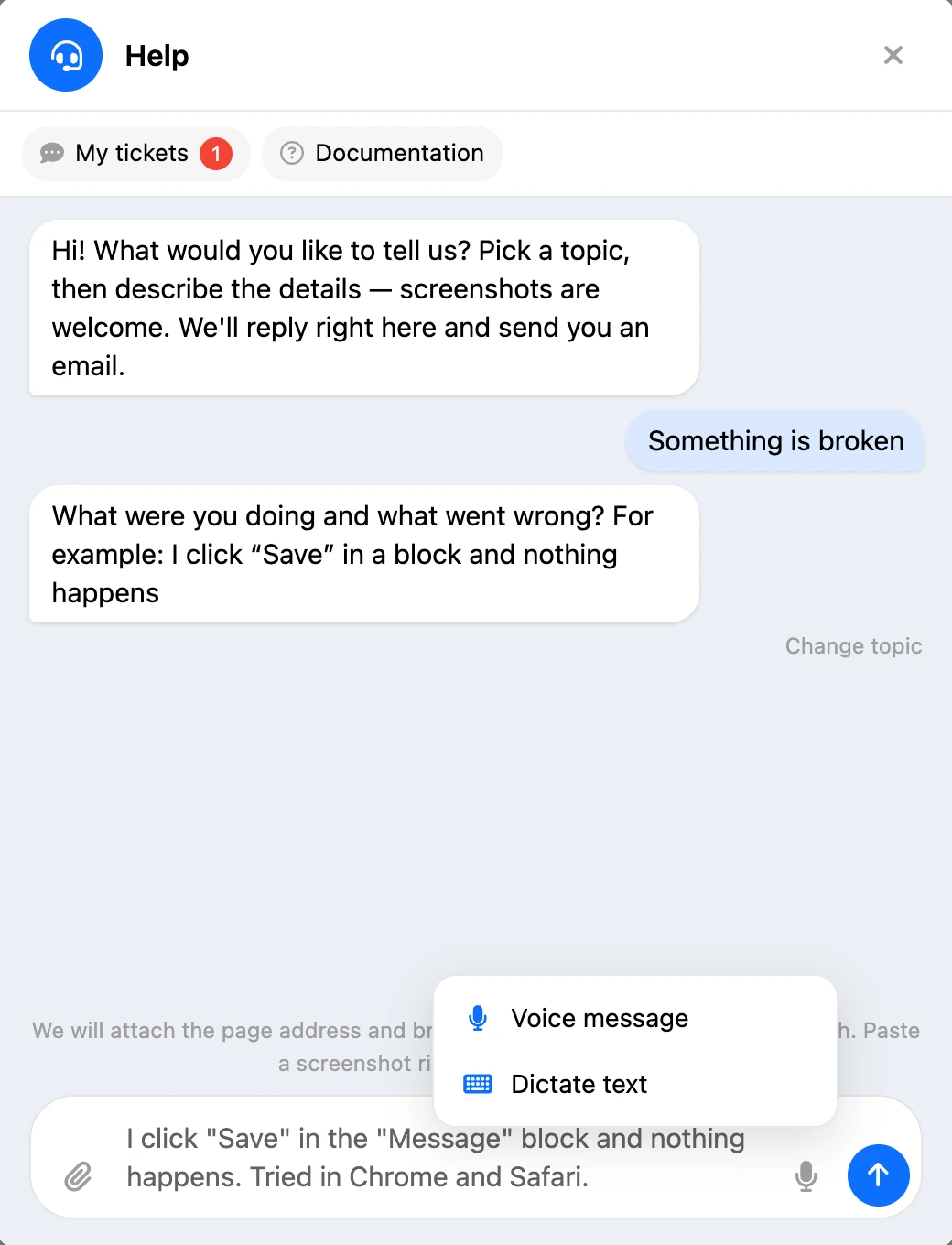
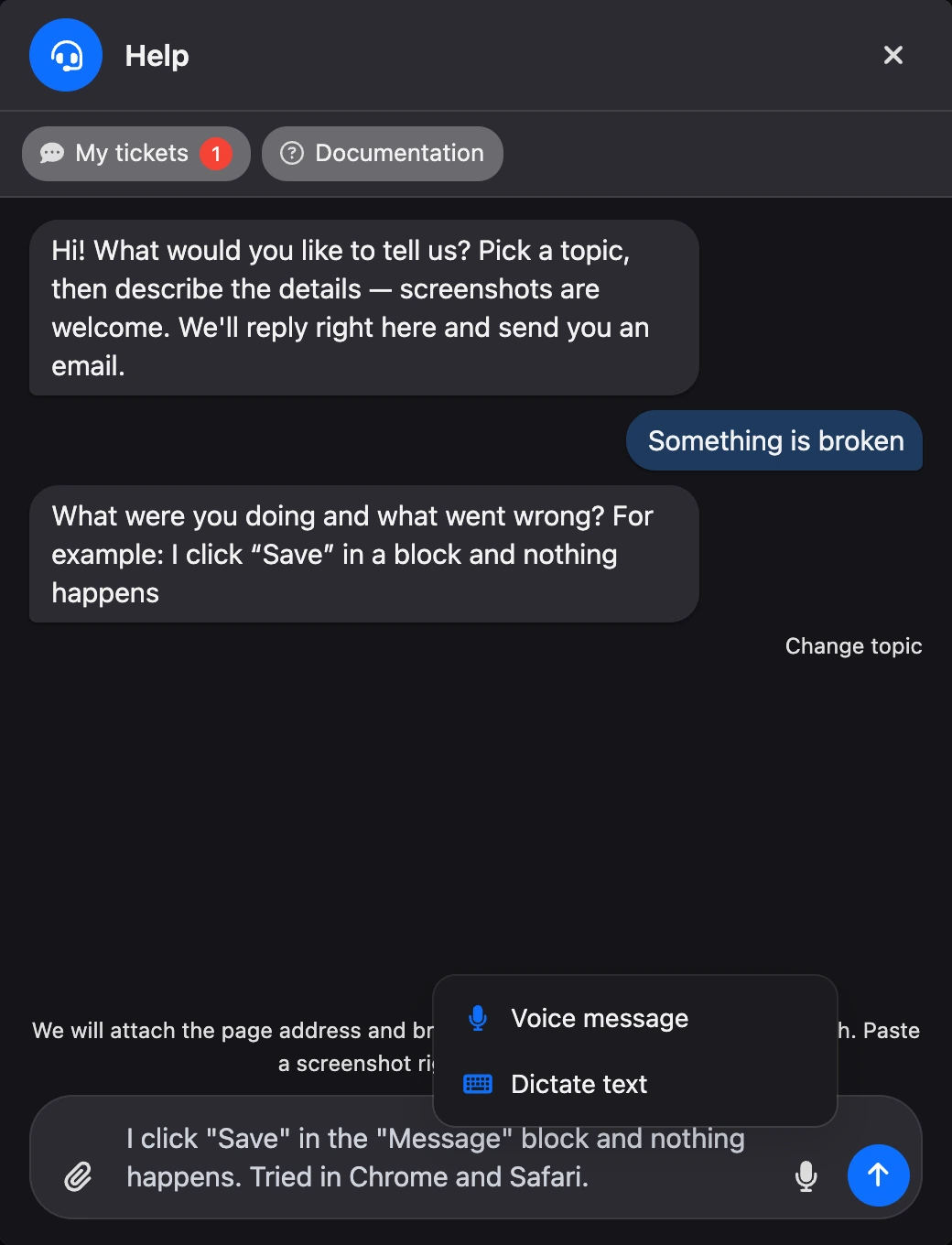
- Describe your question. The more detail, the faster the answer: what you were doing, what you expected to see and what happened.
- Attach files if needed.
- Click "Send" or press Enter. For a new line, press Shift + Enter.
The ticket gets a number, for example "Ticket #128". The reply comes to the same window, and also as a dashboard notification and an email.
If you picked the wrong topic, click "Change topic" — before you send the first message.
Files and screenshots
You can attach up to 5 files to a message, up to 20 MB each. Images, documents, spreadsheets, logs, archives and videos are all fine.
You do not have to save a screenshot to a file: copy it and paste it right into the message field with Ctrl + V.
Voice: dictation and voice messages
The microphone button in the message field offers two options:
- "Dictate text" — your speech turns into text right in the message field. You can edit it before sending. To stop, click the dictation button again.
- "Voice message" — a recording of up to 3 minutes. Before sending, you can listen to it or delete it. In the conversation, a transcript appears under the voice message. If the recording could not be transcribed, you can still listen to it.
The browser will ask for access to the microphone — allow it. If your browser cannot record sound, the microphone button is not shown.
AI assistant
The AI assistant answers your question first. It looks for the answer in the Watbot help center and, if needed, on the internet. The assistant sees attached screenshots and files, understands voice messages and replies in the same window within seconds. While it works, you can see what it is doing: searching the help center, opening a page, reading a file.
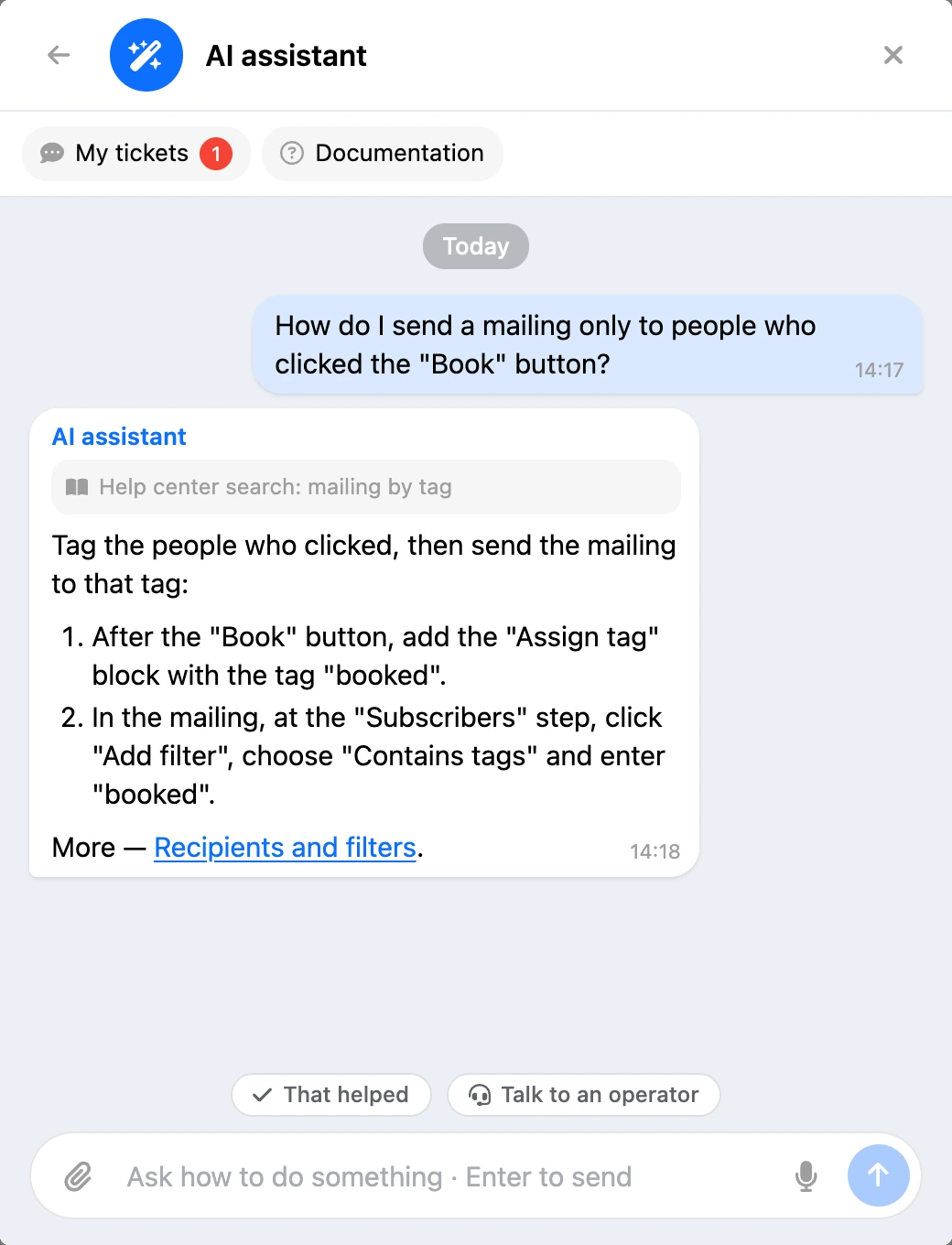
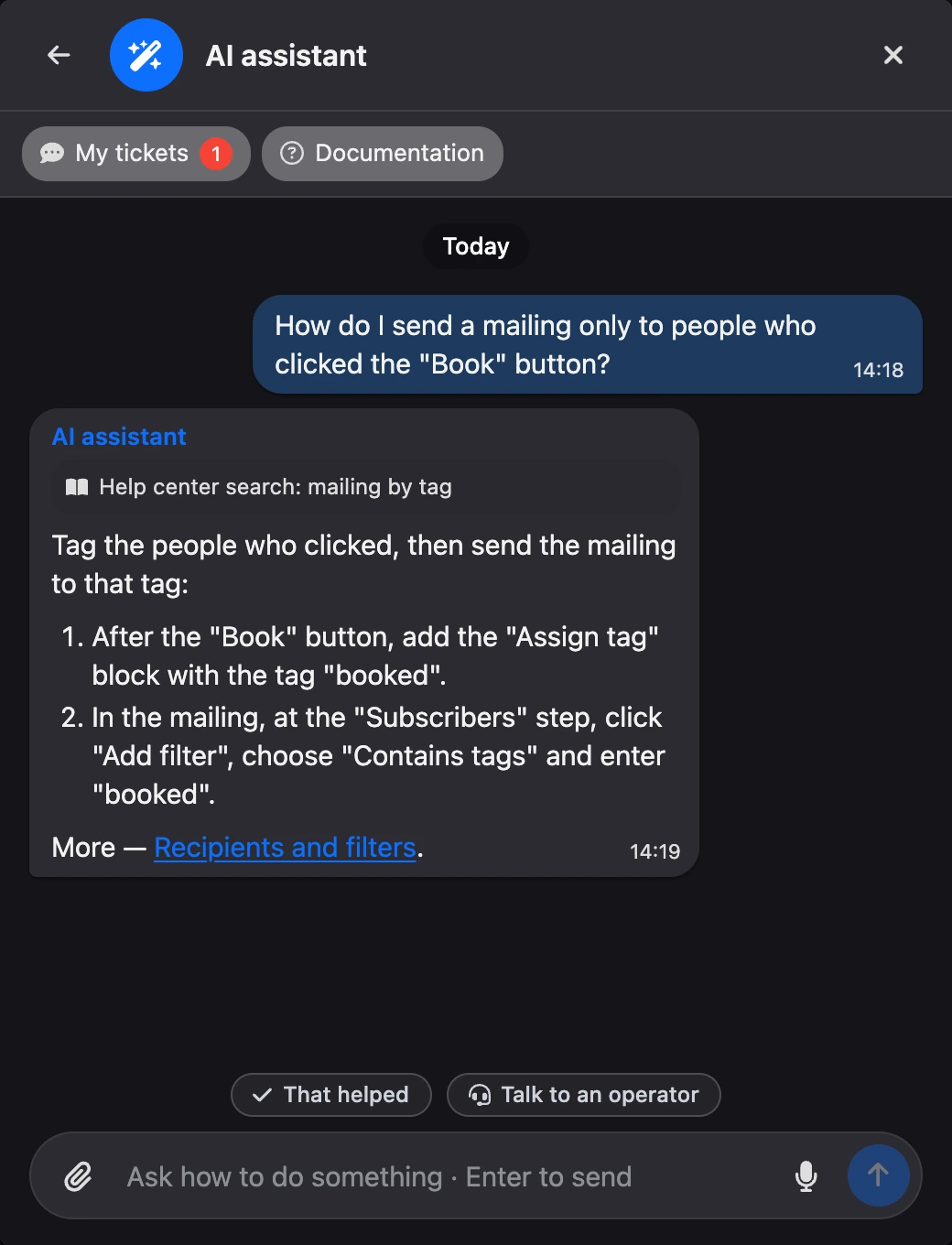
Under the assistant's reply there are two buttons:
- "That helped" — the question is solved and the ticket closes.
- "Talk to an operator" — the ticket with the whole conversation goes to a support team member. You do not need to repeat your question.
The assistant cannot see your account or projects and does not change anything in them. So it passes the ticket to an operator by itself if:
- the answer is neither in the help center nor on the internet;
- the question is about payment, refunds, invoices, access, deleting the account, limits or an error in your project;
- you asked for a person, or the answer did not suit you.
With the "Missing feature" topic, the assistant first checks whether the feature already exists — sometimes it has a different name or is in another section. If the feature does not exist, it passes your request to an operator. With the "Something is broken" topic, the assistant suggests what to check, and if that does not help, passes the ticket to an operator.
If the assistant has not replied to a message, the ticket also goes to an operator after a few minutes.
The assistant is free: "AI Credits" are not spent. If you have asked the assistant many questions in one day, your next question goes straight to an operator.
Write to an operator directly
If you want a person to reply, click "Write to an operator directly" at the first step. Above the message field you can see who will reply: "The AI assistant will reply" or "A support operator will reply". You can switch at any time before sending.
Tip
The assistant is best at "how to" questions: how to set up a block, connect a messenger, publish a mini app. Questions about payments and invoices are solved faster by an operator.
My tickets
All your requests are collected in "Help" — open "My tickets" in the "Help" window. Tickets are split into groups: "All", "Open", "Awaiting your reply" and "Closed". You can find a ticket by its subject, text or number.
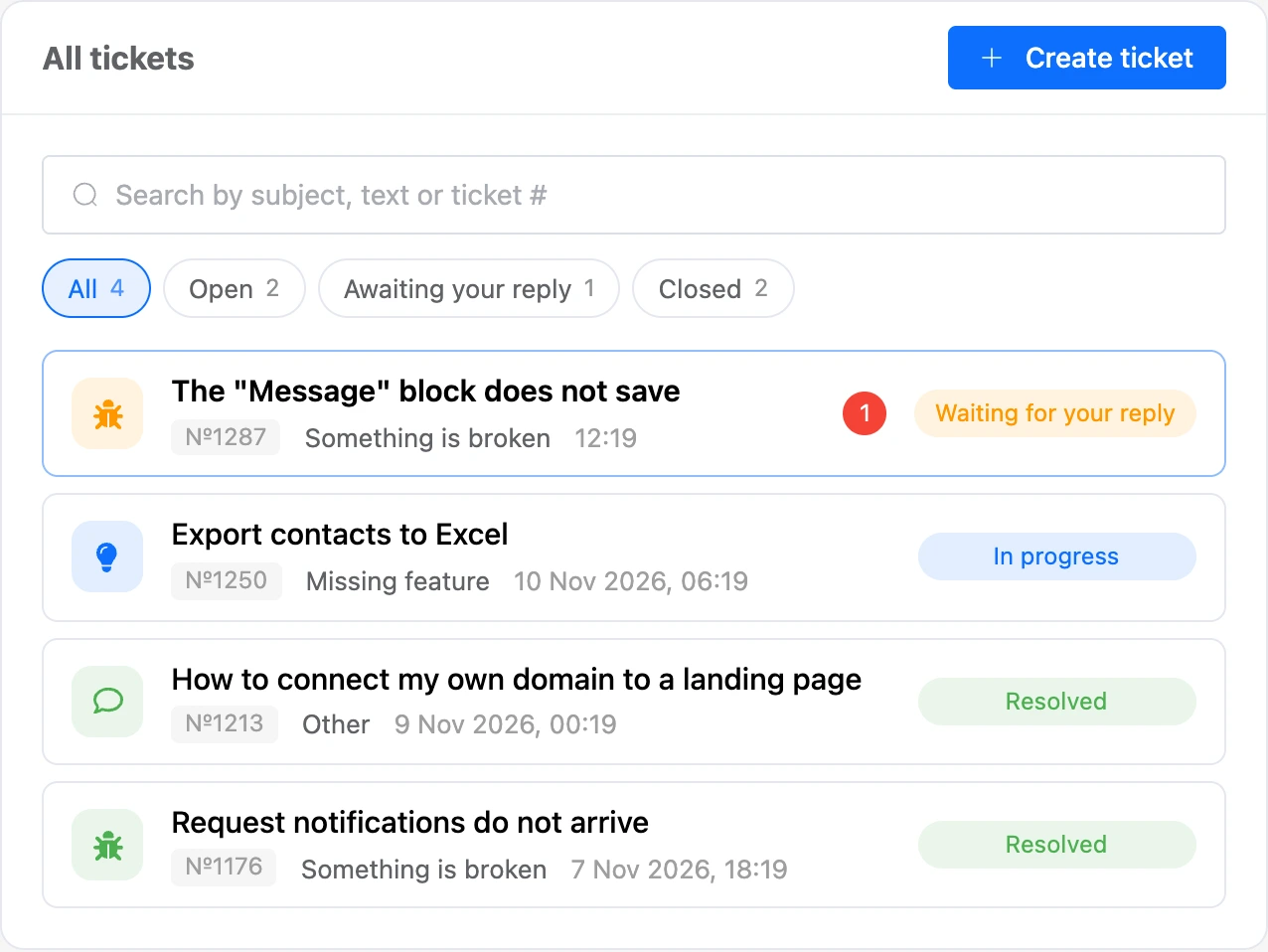
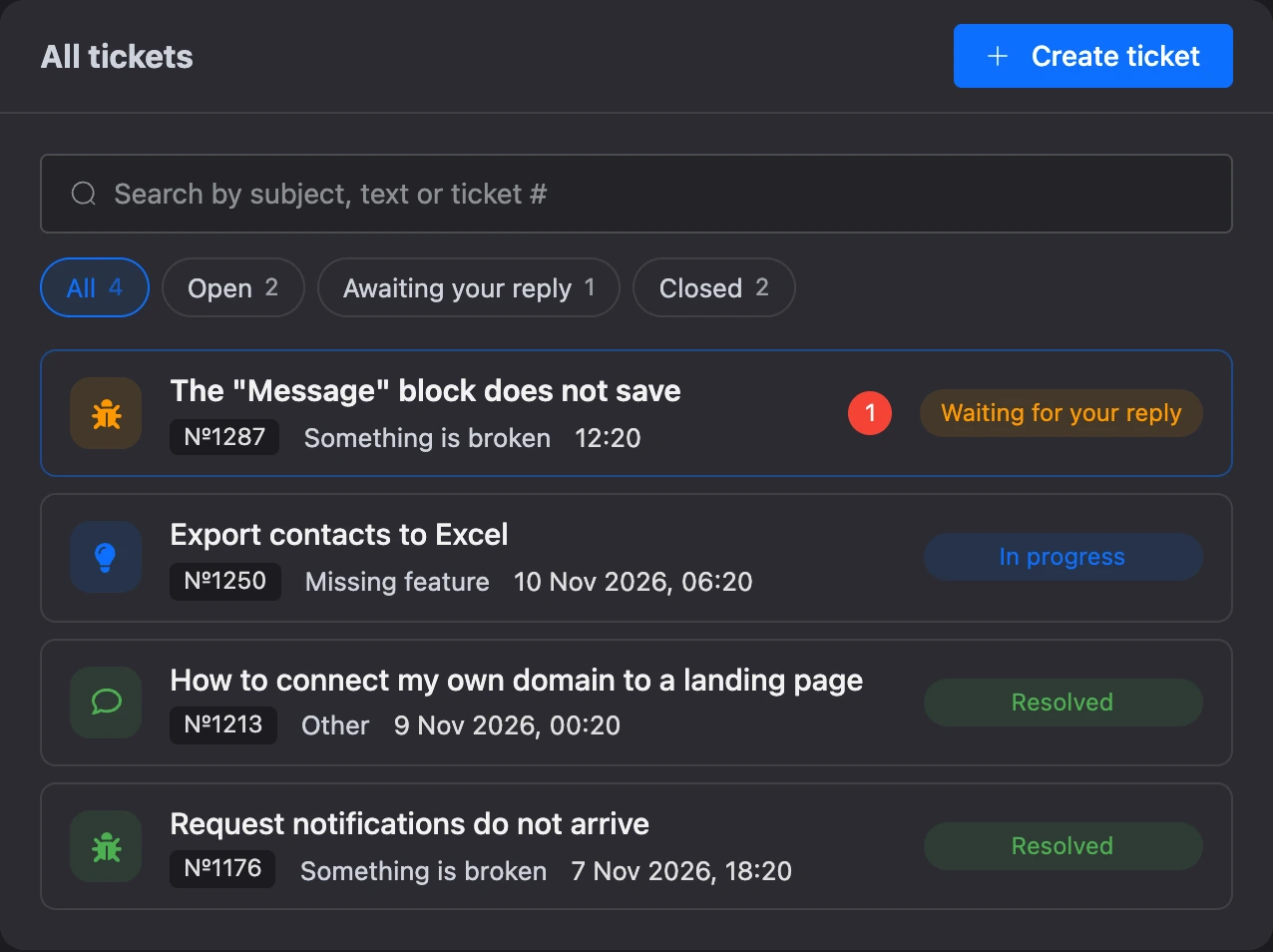
If you have unread replies, their number is shown on the "Help" button in the dashboard header.
Ticket statuses
| Status | What it means |
|---|---|
| "Sent" | The ticket has been received, but support has not picked it up yet |
| "In progress" | Support is working on your question |
| "Waiting for your reply" | Support needs more details from you |
| "Resolved" | The question is solved and the ticket is closed |
| "Declined" | Support will not do this, for example a suggested feature; the reason is in the conversation |
If a ticket waits for your reply for 7 days, it closes by itself.
Close and reopen
You can close a ticket yourself with the "Close ticket" button. If the question remains, just write to the closed ticket: it will reopen.
Rating
A support team member may ask you to rate the reply. Tap a star — the rating closes the ticket. After that, you can add a comment about what we could improve.